Funder Portal Guide
RPA Commercial Loans | Funder Edition | Revised June 2026
RPA Commercial Loans
Funder Portal User Manual
Edition: June 2026
Designed for Registered Lenders & Capital Providers
Quick Contact
Phone: (844) 250-5626
Email: support@rpacommercialloans.com
Website: www.rpacommercialloans.com
CONFIDENTIALITY & PROPRIETARY NOTICE: This document is confidential and proprietary. It is intended exclusively for use by lending institutions, private lenders, capital providers, and other institutional funders who are registered and authorized users of the RPA Commercial Loans platform. Unauthorized access, reproduction, distribution, or use of this manual is strictly prohibited. All rights reserved.
DISCLAIMER: This manual is provided for informational purposes only. While RPA Commercial Loans has taken care to ensure the accuracy of the information contained herein, no warranties, express or implied, are made regarding the completeness, accuracy, or fitness for a particular purpose. Users are solely responsible for reviewing and understanding all platform features and terms of service.
SECURITY NOTICE: This document contains sensitive information related to the RPA Commercial Loans Funder Portal. It is intended only for registered funders and their authorized personnel. If you have received this document in error, please contact us immediately at support@rpacommercialloans.com.
© 2026 RPA Commercial Loans. All Rights Reserved.
Ready to Partner with RPA Commercial Loans?
Join our network of lending partners and receive pre-screened commercial loan opportunities matched to your lending criteria.
1. Welcome
Welcome to the RPA Commercial Loans Funder Portal. This manual has been prepared specifically for lending institutions, private lenders, and other capital providers who have been granted access to our platform as Funders. Its purpose is to guide you through every feature available to you, step by step, with enough detail that no prior experience with the platform is necessary.
As a Funder, your role within the platform is to discover qualified commercial loan opportunities that have been pre-screened and submitted by RPA Commercial Loans on behalf of borrowers. You will be able to review full application packages, express interest by submitting preliminary terms, issue formal term sheets, and track the status of every opportunity you have engaged with.
Please read this manual in full before logging in for the first time. If you encounter any issue not addressed here, you are welcome to contact us through the Contact page on our website.
2. Logging In for the First Time
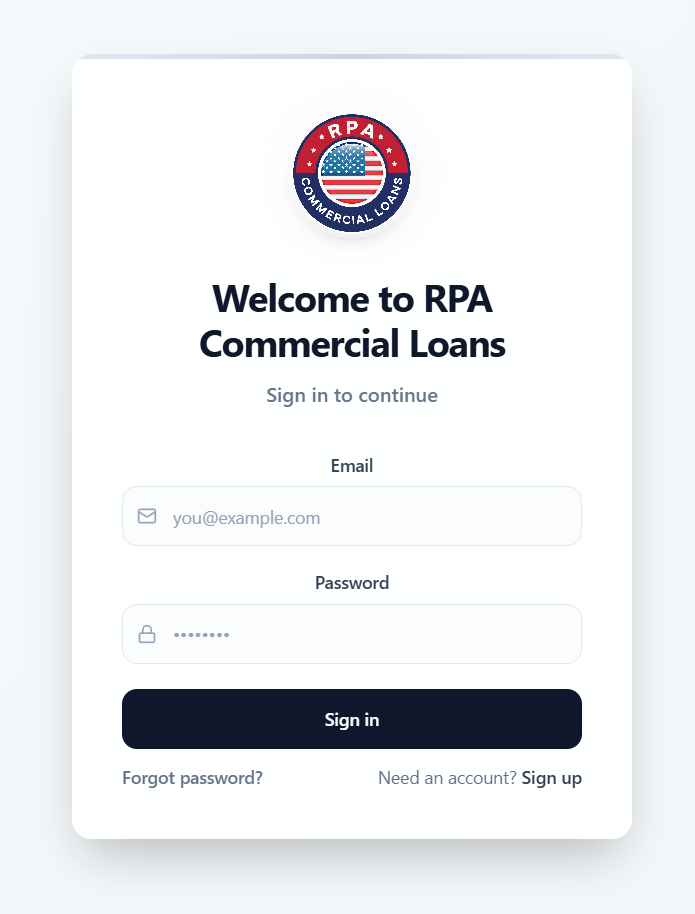
Your account will be created by the RPA team after your registration has been reviewed and approved. You will receive an email invitation containing a secure link. That link will direct you to a page where you may set your password and complete your account activation.
Open your invitation email.
Set your password.
Log in.
3. Completing Onboarding
The first time you log in, you will be guided through a four-step onboarding process. This process collects the information that RPA and borrowers will see when your company is displayed in connection with a term sheet or loan offer. You must complete all four steps before you will be able to access the main dashboard.
A progress bar at the top of the page indicates which step you are on. You may move backward to a previous step at any time by clicking the "Back" button, and no data will be lost.
Step 1 of 4: Company Profile
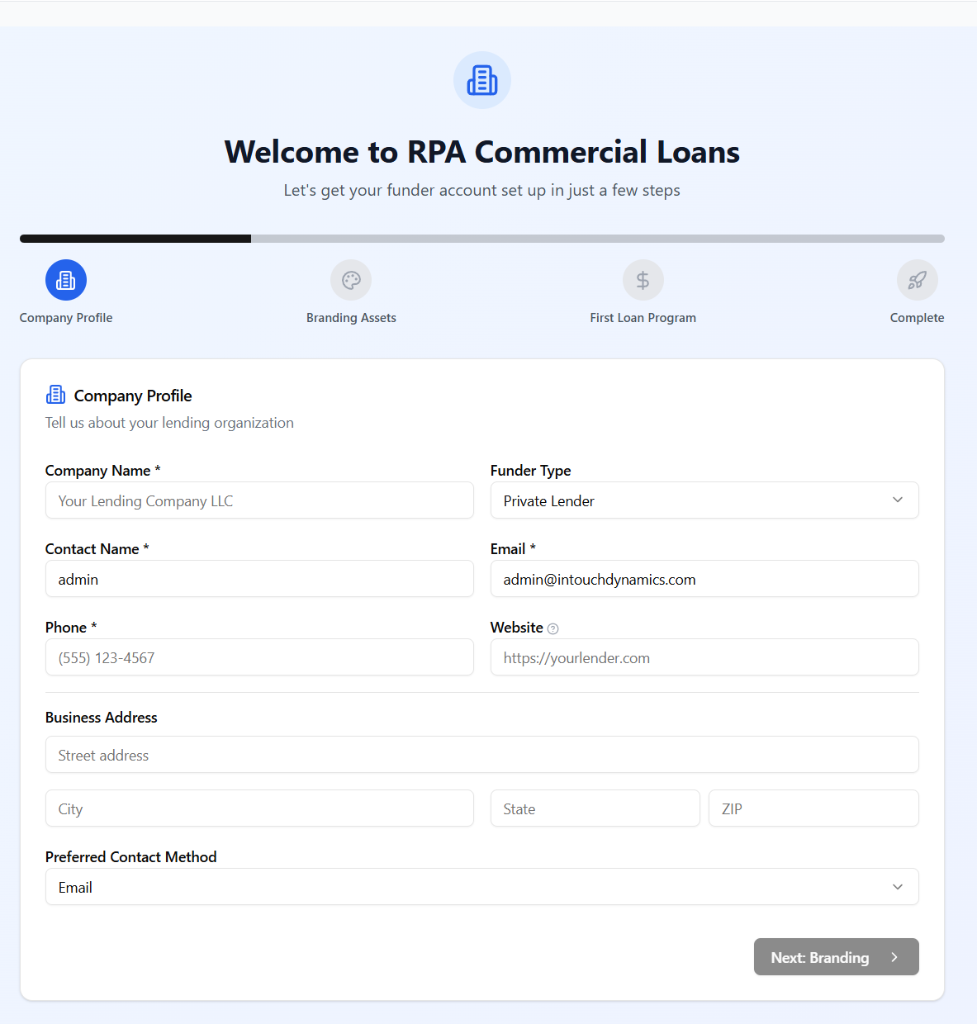
On this screen, you will enter the core details of your lending organization. The following fields are required and must be completed before you may advance to the next step:
- Company Name. The full legal or trading name of your organization as you wish it to appear on the platform.
- Contact Name. The name of the primary person who will be managing this account.
- Email Address. The contact email for lending inquiries. This may differ from your login email address.
- Phone Number. A direct telephone number for your lending team.
The following fields are optional but strongly recommended, as they provide borrowers and RPA staff with a more complete picture of your organization:
- Funder Type. Select the category that best describes your organization (e.g., Private Lender, Bank, Hard Money Lender, Credit Union, Agency, or Other).
- Website. Your company website URL, beginning with "https://".
- Business Address. Your physical street address, city, state (two-letter abbreviation), and ZIP code.
- Preferred Contact Method. Choose "Email," "Phone," or "Portal Only" to indicate how you prefer to be contacted.
When you are satisfied with your entries, click "Next: Branding" to proceed.
Step 2 of 4: Branding and Visual Identity
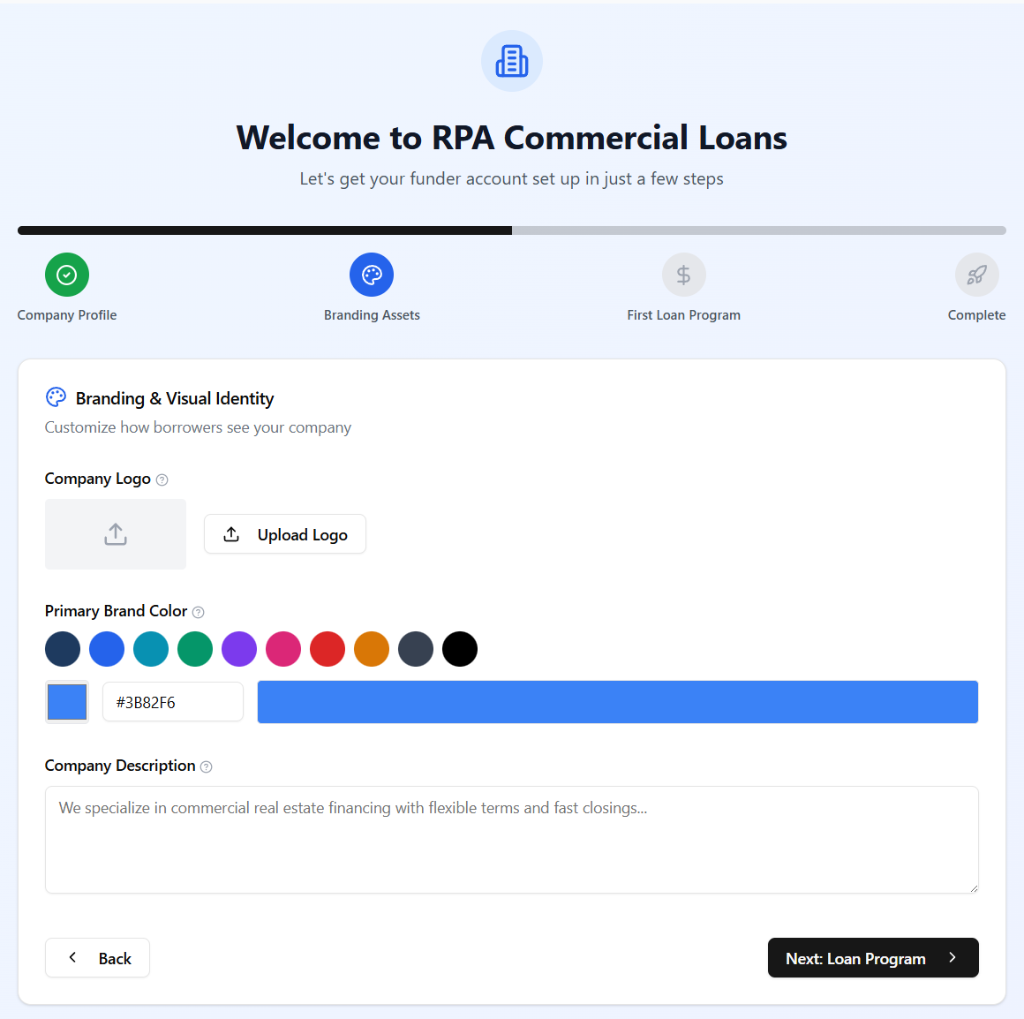
This step allows you to upload your logo and choose a brand color. These elements will appear on any term sheets or communications that borrowers receive from your organization through the platform.
- Company Logo. Click "Upload Logo" and select a PNG or JPG image file. The recommended dimensions are 400 pixels wide by 100 pixels tall. After the upload is complete, a preview of the logo will appear on screen.
- Primary Brand Color. You may select one of the preset color swatches provided, use the circular color picker, or type a hexadecimal color code (such as "#1E3A5F") directly into the text field. A live preview strip will reflect your selection.
- Company Description. Write a brief description of your lending organization. This text will be visible to borrowers when they are reviewing your term sheet. A clear and professional description, two to four sentences in length, is recommended.
Click "Next: Loan Program" to continue.
Step 3 of 4: Your First Loan Program
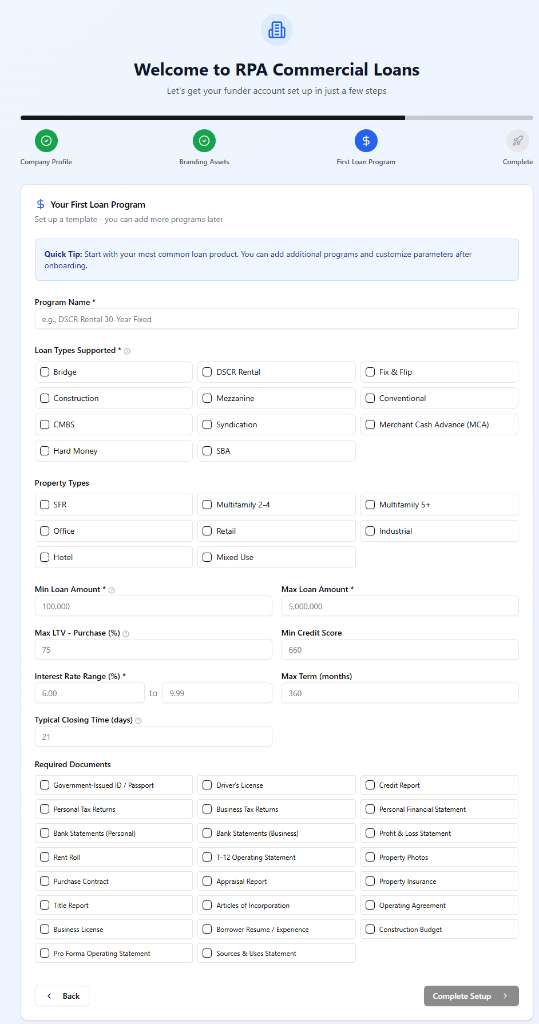
In this step, you will create your first loan program. A loan program defines the types of loans you are willing to fund, the property categories you accept, and your lending parameters (such as loan size range, maximum LTV, and interest rate range). You may add additional programs and edit all parameters after onboarding is complete.
- Program Name (required). Choose a clear, descriptive name (for example, "Bridge Loan, Multifamily 12-Month" or "DSCR Rental 30-Year Fixed").
- Loan Types Supported (required). Check all loan categories your program covers. Options include Bridge, Fix and Flip, Construction, Conventional, SBA, Hard Money, DSCR Rental, and others.
- Property Types. Check the types of real property this program applies to, such as Single Family Residence, Multifamily 5+, Office, Retail, or Industrial.
- Minimum and Maximum Loan Amount (required). Enter the lower and upper bounds of the loan amounts your organization will consider under this program.
- Maximum LTV, Purchase (%). The highest loan-to-value ratio you will accept on a purchase transaction, expressed as a percentage.
- Minimum Credit Score. The lowest middle FICO score you will consider from a borrower.
- Interest Rate Range (required). Enter the lowest and highest interest rates your program offers, in percent (for example, 7.00 and 10.99).
- Maximum Term (Months). The longest loan duration your program supports.
- Typical Closing Time (Days). An estimate of how many calendar days typically elapse between loan approval and funding.
- Required Documents. Check each document type you will require borrowers to provide. This information helps RPA ensure that borrowers are prepared before an application is submitted to you.
When you have completed the required fields, click "Complete Setup" to save your program and finalize onboarding.
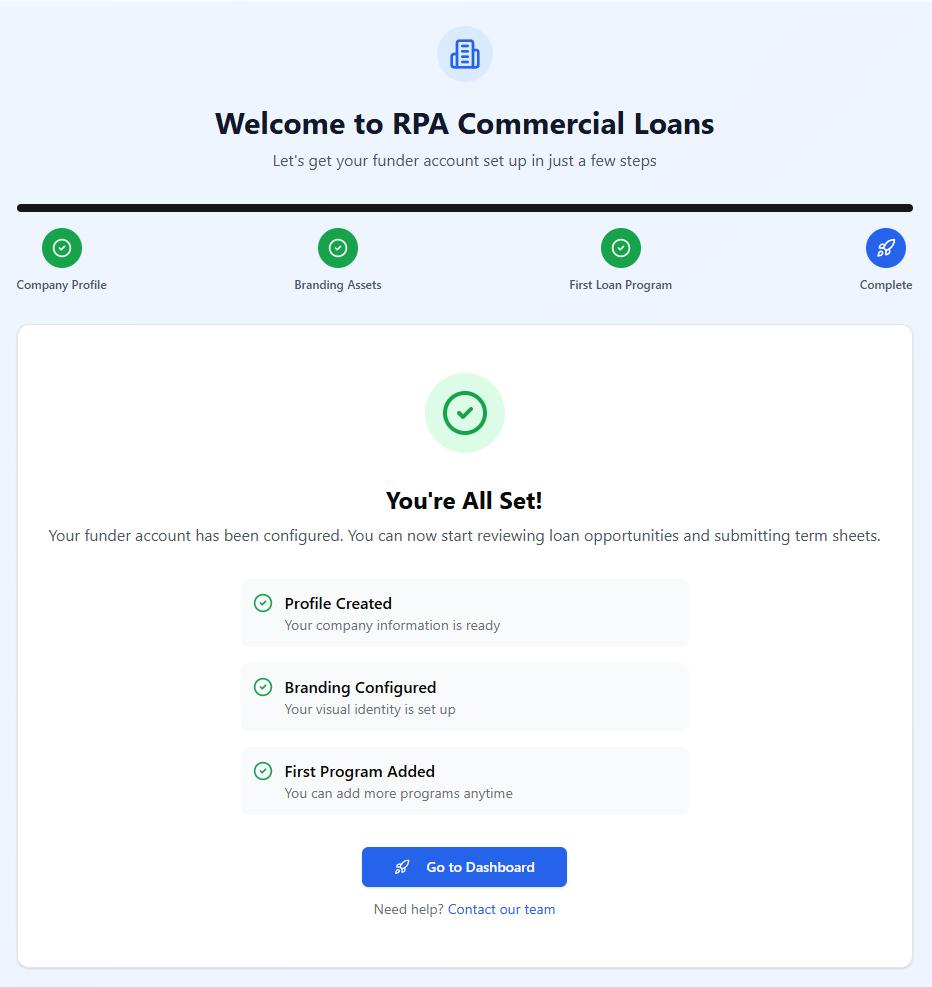
Step 4 of 4: Setup Complete
A confirmation screen will appear showing three green checkmarks confirming that your profile, branding, and first loan program have been saved. Click the blue "Go to Dashboard" button to enter the platform.
Ready to Set Up Your Funder Account?
If you haven't registered yet, complete your registration to access the onboarding wizard and start receiving matched loan opportunities.
4. Your Dashboard
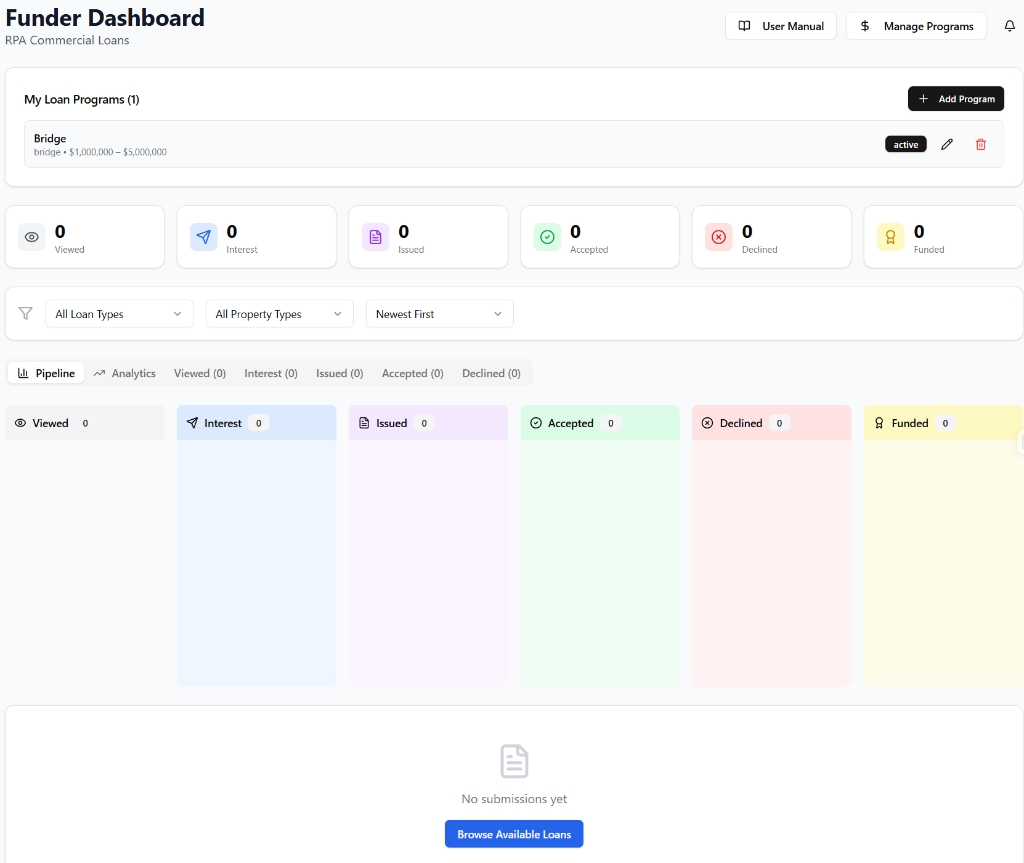
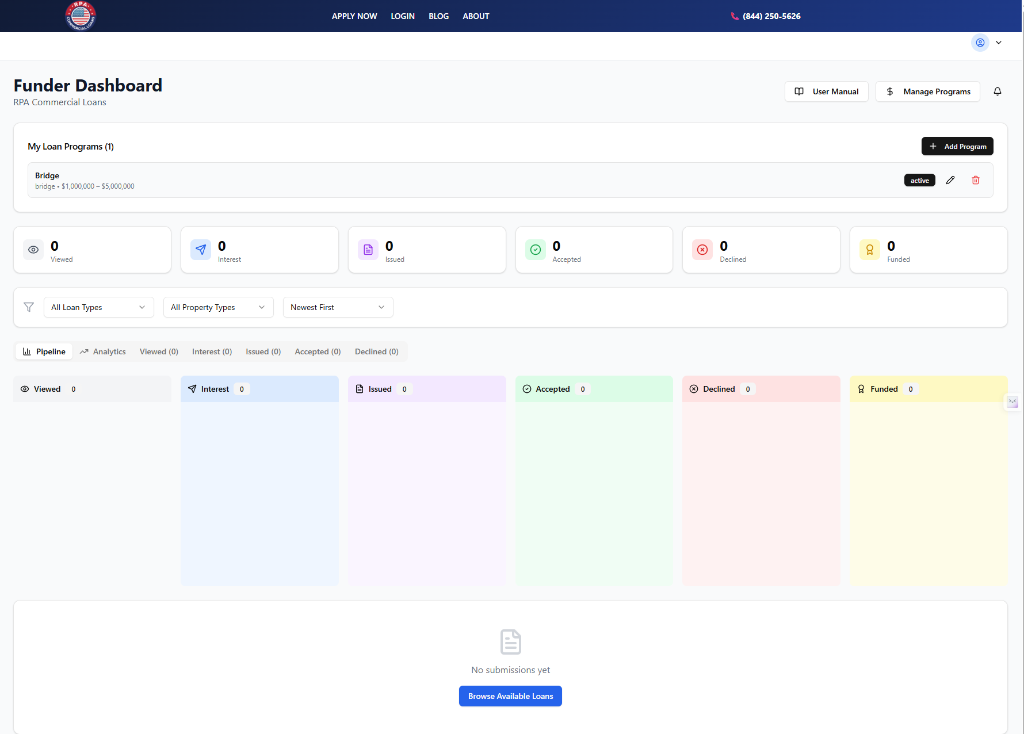
The Funder Dashboard is the central hub of your activity on the platform. Every time you log in, this is the first screen you will see. It provides an at-a-glance summary of your entire pipeline and gives you quick access to every major function.
4.1 Company Name and Header
At the top of the page, you will see your company name displayed beneath the "Funder Dashboard" heading. Two buttons appear in the upper right corner of the header area:
- Manage Programs. Clicking this button takes you directly to the Loan Programs management page, where you may add, edit, or remove loan programs.
- Notifications bell icon. This icon shows you any new notifications, such as alerts that a borrower has selected your term sheet or that a new matching loan opportunity has been posted.
4.2 Loan Programs Summary Panel
Beneath the header, a card lists all of your current loan programs, each showing its name, the loan types it covers, and the loan amount range. To the right of each program entry, you will find:
- A status badge indicating whether the program is "Active," "Inactive," or "Pending Review."
- A pencil icon to edit the program.
- A red trash icon to delete the program. You will be asked to confirm before any deletion is finalized.
An "Add Program" button appears in the upper right of this panel, allowing you to create a new loan program at any time.
4.3 Pipeline Statistics Cards
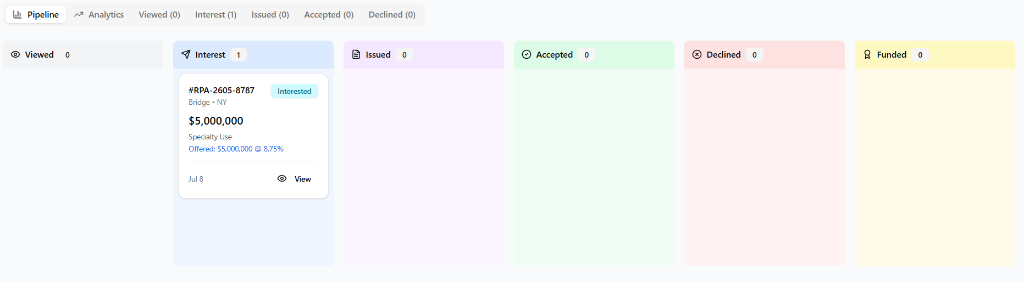
Six colored summary cards display the total count of loan opportunities at each stage of your pipeline. These stages, from left to right, are as follows:
| Card | Color | Meaning |
|---|---|---|
| Viewed | Gray | Loans you have opened and reviewed but have not yet acted upon. |
| Interest | Blue | Loans for which you have submitted preliminary interest and terms. |
| Issued | Purple | Formal term sheets that have been issued to the borrower. |
| Accepted | Green | Term sheets that the borrower has accepted. |
| Declined | Red | Loans you have declined to pursue. |
| Funded | Yellow/Gold | Loans that have closed and been funded, with your term sheet selected. |
4.4 Filter and Sort Controls
Below the statistics cards, you will find three dropdown menus that allow you to refine which opportunities are displayed in the Pipeline and individual stage tabs:
- Loan Type filter. Limits the display to one loan type (for example, Bridge or SBA).
- Property Type filter. Limits the display to one property category (for example, Multifamily 5+ or Office).
- Sort By. Orders the cards by newest date first, oldest date first, highest loan amount first, or lowest loan amount first.
Selecting "All Loan Types" or "All Property Types" removes the filter and shows all records.
4.5 Pipeline and Stage Tabs
The lower portion of the Dashboard contains a tabbed view with the following tabs: Pipeline, Analytics, Viewed, Interest, Issued, Accepted, and Declined. Each tab's name shows the count of records currently in that stage.
- Pipeline tab. Displays a Kanban-style board with all six stages arranged as columns side by side. This view provides the most comprehensive overview of your entire pipeline in a single glance.
- Individual stage tabs. Each of the remaining tabs (Viewed, Interest, Issued, Accepted, Declined) shows only the loan cards belonging to that stage, displayed in a wider card grid for easier reading.
Each loan card within any tab shows the application number, loan type, location (state), requested loan amount, property type, and any offered terms if a term sheet has been submitted. A "View" button appears at the bottom of each card, taking you directly to the full loan detail screen.
5. Managing Loan Programs
Loan programs are the foundation of how the RPA platform matches your organization with appropriate loan opportunities. The more precisely you define your programs, the better the match quality you will receive. You may access your program management screen at any time by clicking "Manage Programs" on the Dashboard, or by navigating to "My Programs" from the left-hand sidebar.
5.1 Program Status Indicators
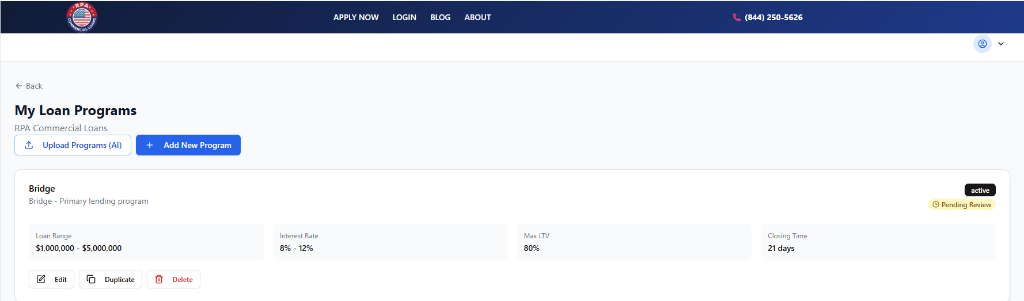
Each program card displays two status indicators:
- Active / Inactive / Paused. Indicates whether the program is currently enabled. Only "Active" programs are used in matching.
- Pending Review / Live / Changes Needed. Indicates the RPA review status. A program marked "Live" has been approved and is actively being used in matching. A program marked "Pending Review" is awaiting RPA approval. A program marked "Changes Needed" has been flagged by RPA staff, and notes explaining the requested changes will be shown in a red box on the program card.
5.2 Adding a New Loan Program
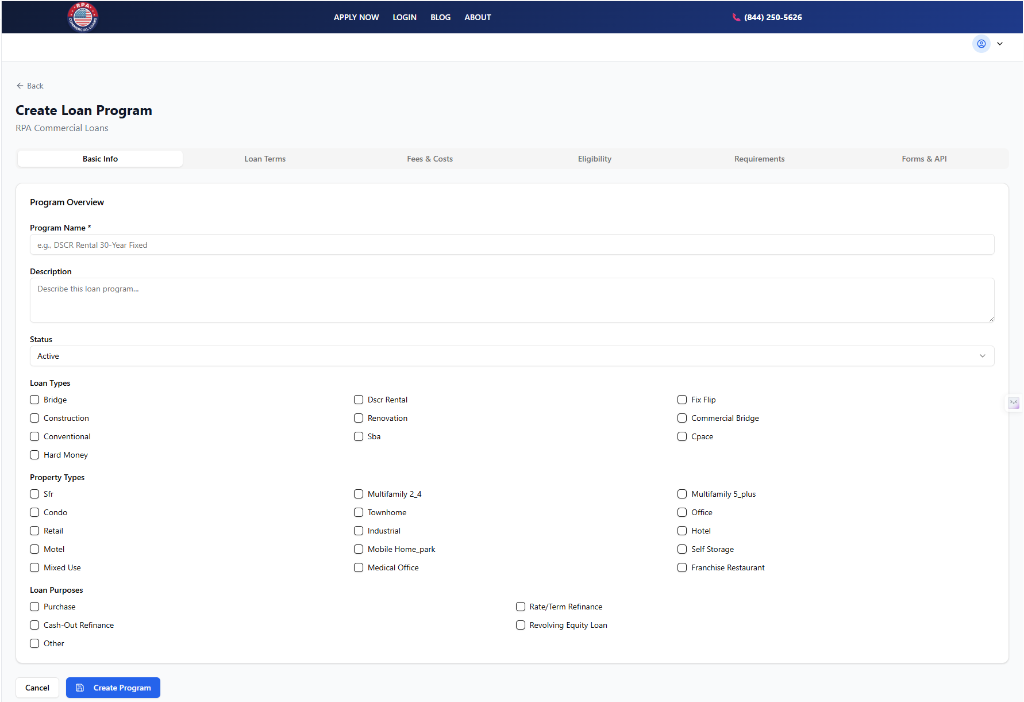
Click the blue "Add New Program" button at the top right of the Programs page. You will be taken to the Program Form, which is organized into six tabs:
- Basic Info. Program name, description, status, loan types, property types, and loan purposes.
- Loan Terms. Minimum and maximum loan amount, maximum LTV ratios for purchases, rate-and-term refinances, and cash-out refinances; interest rate range, rate type (Fixed, Variable, or Hybrid), loan term range, amortization term, and whether interest-only periods are available.
- Fees and Costs. Origination fee range, processing fee, appraisal fee, draw fees (for construction programs), good faith deposit amount and refundability, and prepayment penalty structure.
- Eligibility. Minimum credit score, minimum DSCR, minimum debt yield, minimum borrower experience level, whether first-time investors are accepted, whether foreign nationals are accepted, and credit event seasoning (bankruptcy and foreclosure).
- Requirements. Recourse type, guarantor requirements, reserve requirements, occupancy requirements, property condition standards, and special requirements.
- Forms and API. Links to any custom application forms, Personal Financial Statement forms, or disclosure documents you require. You may also configure API submission settings if your organization supports direct API integrations.
5.3 Editing an Existing Program
To edit a program, click the pencil icon on the program card. The same six-tab form will open, pre-populated with the program's current values. Make your changes and click "Update Program." Please note that any edit to an existing program will reset its approval status to "Pending Review" and temporarily set it to "Inactive" until the RPA team has reviewed and re-approved the changes.
5.4 Duplicating a Program
On the program card, a "Duplicate" button allows you to create an identical copy of an existing program. The copy is created with the name "(Copy)" appended to the original program name. You may then rename and modify it as needed. This feature is useful when you wish to create a variant of an existing program without retyping all of the shared parameters.
5.5 Deleting a Program
To permanently remove a program, click the "Delete" button on the program card. A confirmation dialog will appear asking you to confirm the deletion. Deletion is permanent and cannot be undone. If you only wish to temporarily stop a program from being used in matching, consider setting its status to "Inactive" or "Paused" instead of deleting it.
5.6 Auto-Generating Loan Programs from Rate Sheets (AI Upload)
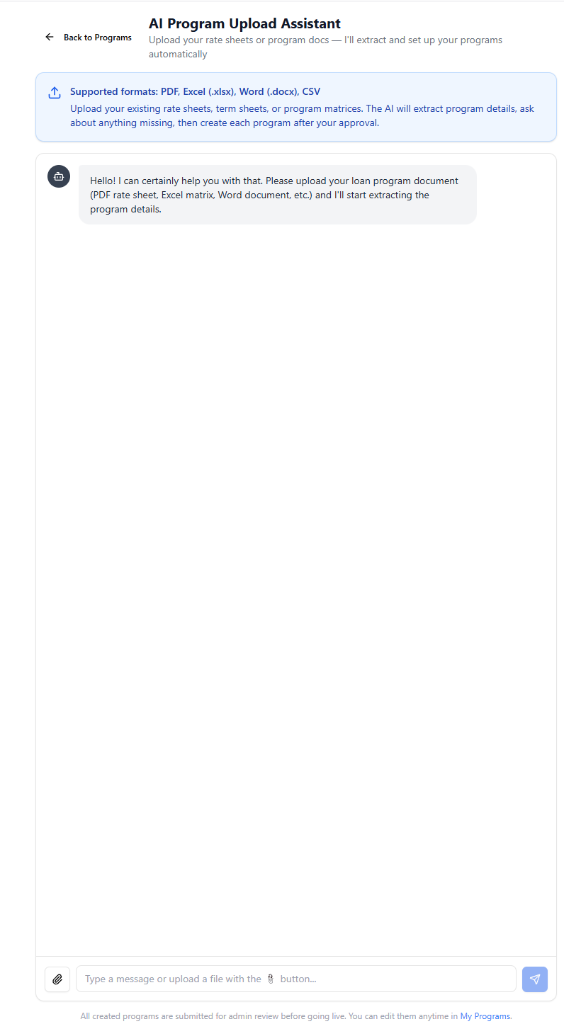
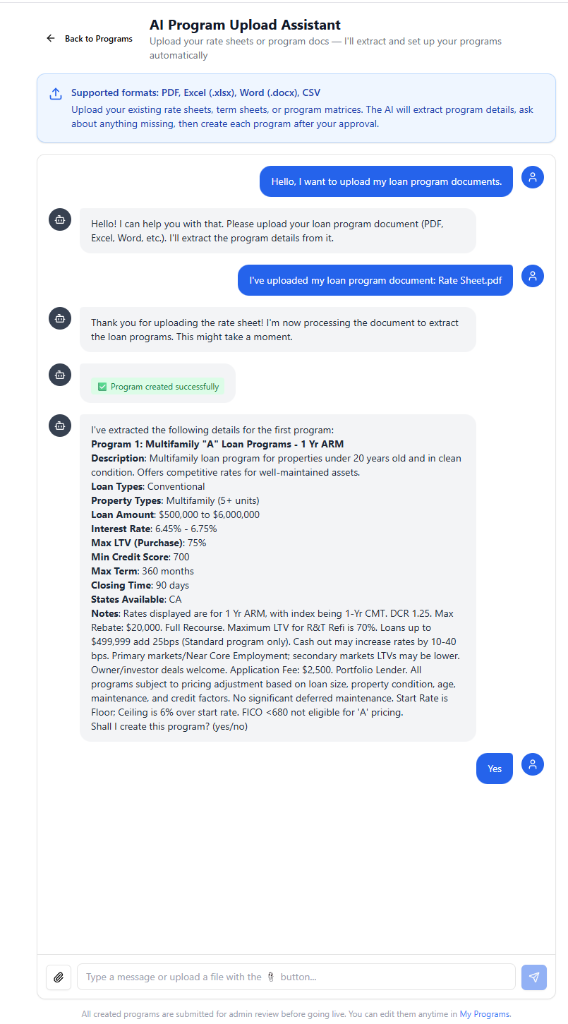
If your lending organization maintains rate sheets, term sheets, or program matrices in document form, you can use the AI Program Upload Assistant to generate your loan programs automatically, without manually filling out the six-tab form. The assistant reads your uploaded document, extracts the lending parameters, asks you to confirm or supply any missing details, and creates each program for you after your approval.
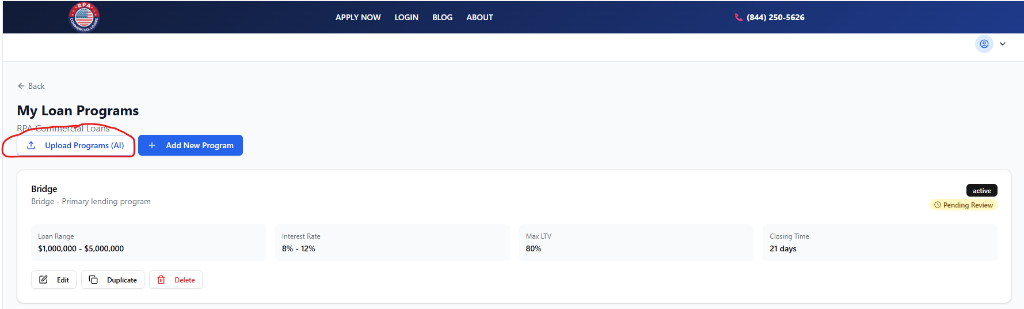
Open the AI Program Upload Assistant.
Review the supported formats.
Upload your document.
Review the extracted program summary.
Answer any clarifying questions.
Approve each program for creation.
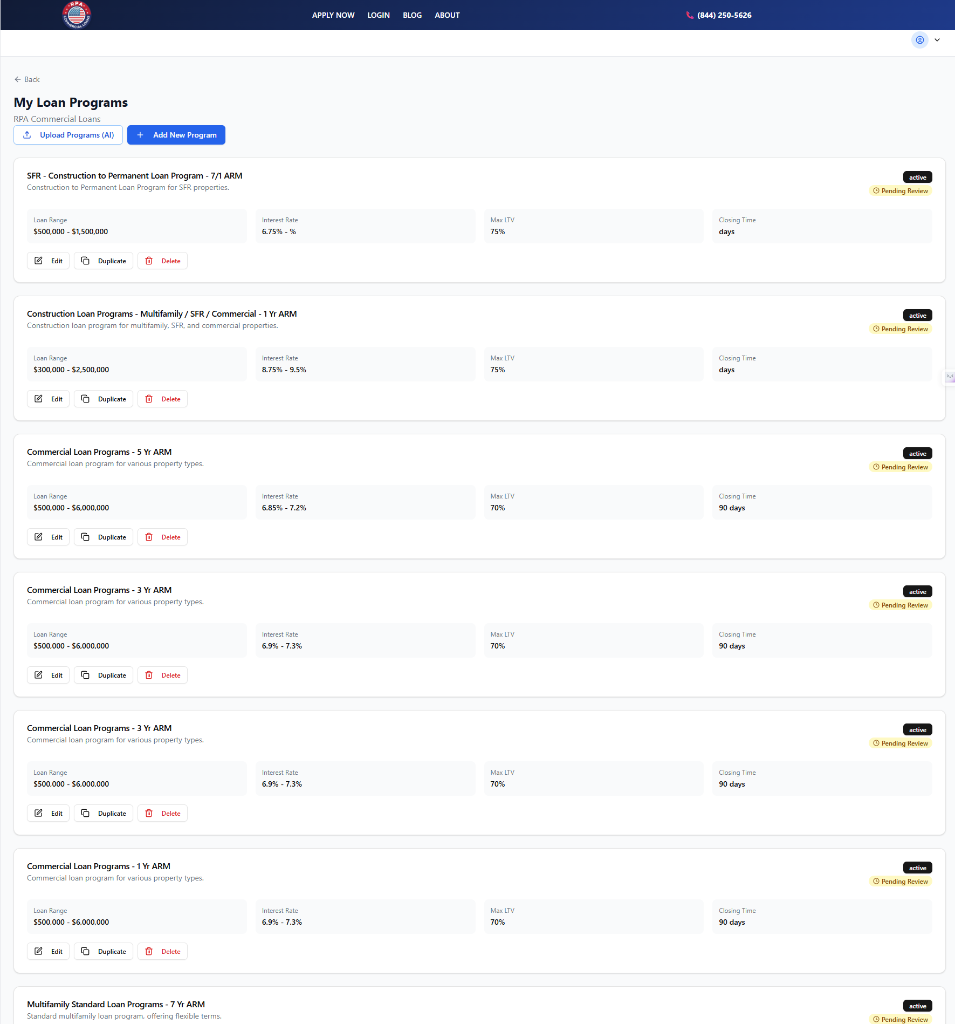
Review your created programs in My Programs.
6. Browsing Available Loan Opportunities
The Available Loans page shows you every loan application that RPA has submitted to funders for review. To reach this page, click "Available Loans" in the left-hand navigation sidebar, or click the "Browse Available Loans" button that appears on the Dashboard when you have not yet submitted any term sheets.
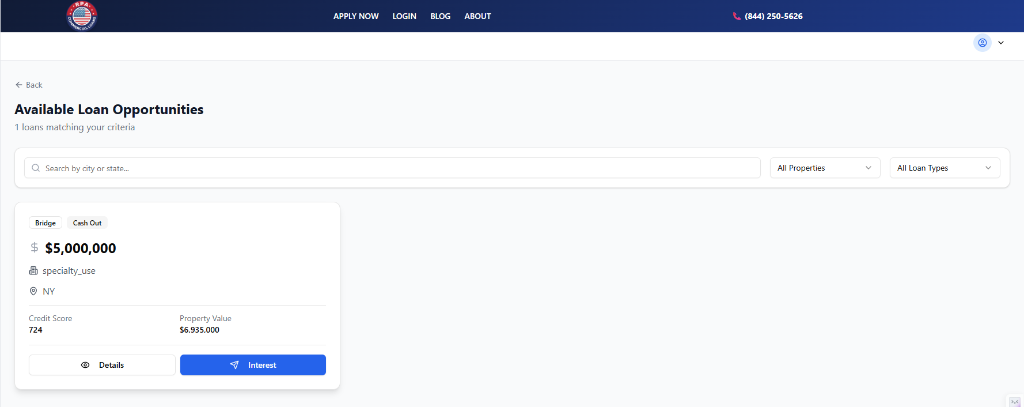
Each loan is displayed as a card showing the following information:
- Loan Type and Loan Purpose badges at the top of the card.
- Requested Loan Amount in large, prominent text.
- Property Type with a building icon.
- State where the property is located. Note that the full address is withheld at this stage to protect borrower privacy and is made available after you submit interest.
- Loan-to-Value ratio (LTV), if provided by the borrower.
- Credit Score (the borrower's mid-score across three bureaus), if provided.
- Property Value, if provided.
- DSCR (Debt Service Coverage Ratio), if applicable to the loan type.
If you have already submitted interest on a loan, a green "Submitted" badge will appear on that loan's card. You will not be able to submit a second round of interest on the same loan.
6.1 Searching and Filtering
Three controls appear at the top of the page to help you find relevant opportunities:
- Search box. Type a city name or state abbreviation to locate loans in a specific geographic area.
- Property Type dropdown. Filter the displayed cards to a single property type (for example, show only "Multifamily 5+" or only "Industrial").
- Loan Type dropdown. Filter the displayed cards to a single loan type (for example, show only "Bridge" or only "Conventional").
Filters can be used in combination. To remove a filter, select "All Properties" or "All Loan Types" from the respective dropdown.
Want Access to These Loan Opportunities?
Register as an RPA funder to browse available loans, review full application packages, and submit term sheets on deals that match your criteria.
7. Reviewing a Loan Opportunity in Detail
Clicking the "Details" button on any loan card, or the "View" button from a pipeline card on the Dashboard, takes you to the full Loan Opportunity Detail page. This page contains all information that RPA has made available for that application, organized into five tabs.
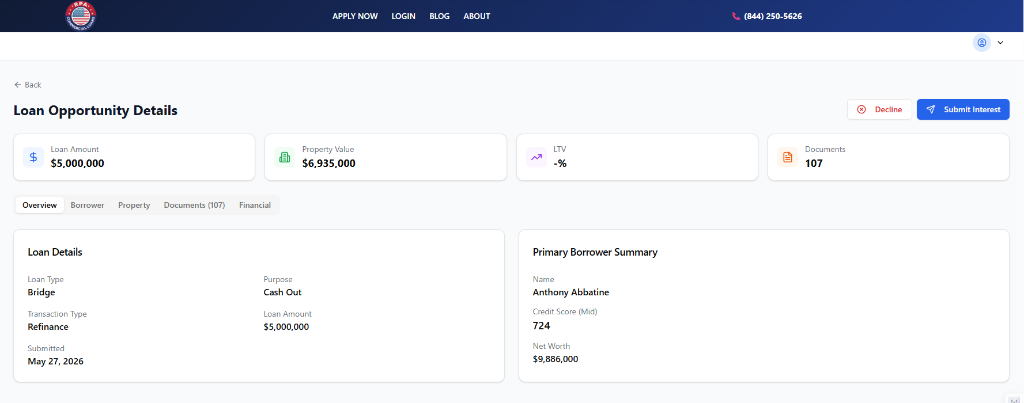
7.1 Summary Cards
At the top of the page, four colored summary cards quickly highlight the most important figures:
- Loan Amount (blue): The total amount requested by the borrower.
- Property Value (green): The estimated market value of the collateral property.
- LTV (purple): The loan-to-value ratio as submitted.
- Documents (orange): The total number of supporting documents uploaded for this application.
7.2 Overview Tab
The Overview tab displays two side-by-side panels. The left panel, "Loan Details," contains the loan type, purpose, transaction type, amount, LTV, DSCR, exit strategy, and submission date. The right panel, "Primary Borrower Summary," contains the borrower's name, credit score, net worth, annual income, and experience level.
7.3 Borrower Tab
The Borrower tab provides a more detailed view of the borrower's profile, including personal information (name and general location), credit and experience history, financial summary (assets, liabilities, and net worth), and the details of the borrowing entity (if the loan is being made to an LLC or corporation rather than to an individual).
7.4 Property Tab
The Property tab shows the property address and location, the property type, physical characteristics (such as square footage, year built, and number of units), and income information (monthly rental income, annual NOI, and occupancy rate) where applicable. The full street address is displayed on this tab once your interest has been submitted.
7.5 Documents Tab
The Documents tab lists each document that has been uploaded for this application. For each document, you will see the document name, the date it was uploaded, and a verification status badge indicating whether the document has been reviewed by RPA. A "View" button opens the document in a new browser tab for your review.
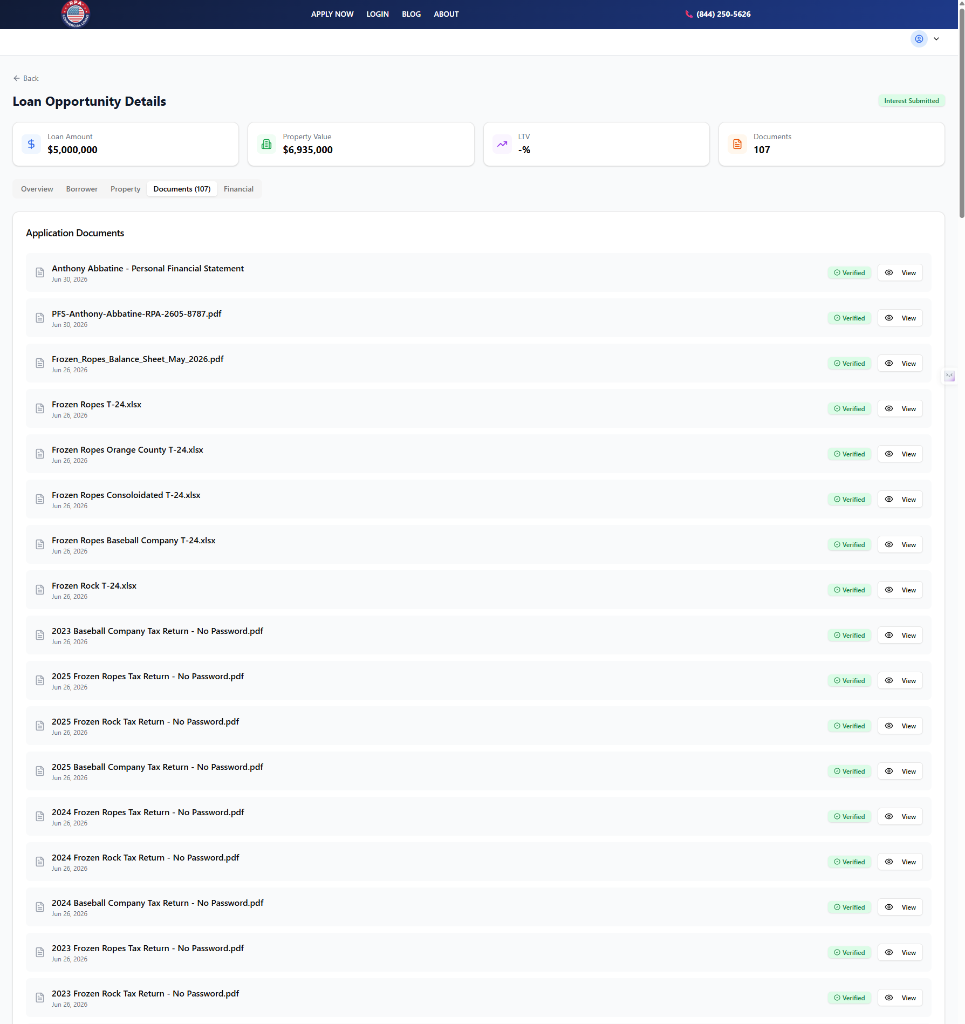
7.6 Financial Tab
The Financial tab presents a consolidated analysis of the loan metrics (loan amount, property value, LTV, DSCR, and down payment) alongside a summary of the borrower's financial strength (net worth, annual income, liquid assets, and credit score). A "Data Export" option is also available at the bottom of this tab, allowing you to download key application data in formats suitable for your own underwriting systems.
7.7 Action Buttons
If you have not yet responded to this opportunity, two action buttons appear at the top right of the page:
- Decline (red). Clicking this button and confirming the dialog records your decision to pass on this opportunity. The loan will move to the "Declined" stage on your Dashboard. This action is recorded in the application's activity log and is visible to RPA staff.
- Submit Interest (blue). Clicking this button takes you to the term sheet submission form described in the next section.
If you have already submitted interest, a green "Interest Submitted" badge will replace the action buttons.
8. Submitting Interest (Preliminary Terms)
When you wish to pursue a loan opportunity, you may indicate your interest by submitting preliminary terms. This is not a binding commitment; it is an indication to RPA and the borrower that your organization is willing to consider funding the loan under the terms you specify. If the borrower selects your offer, a formal term sheet process will follow.
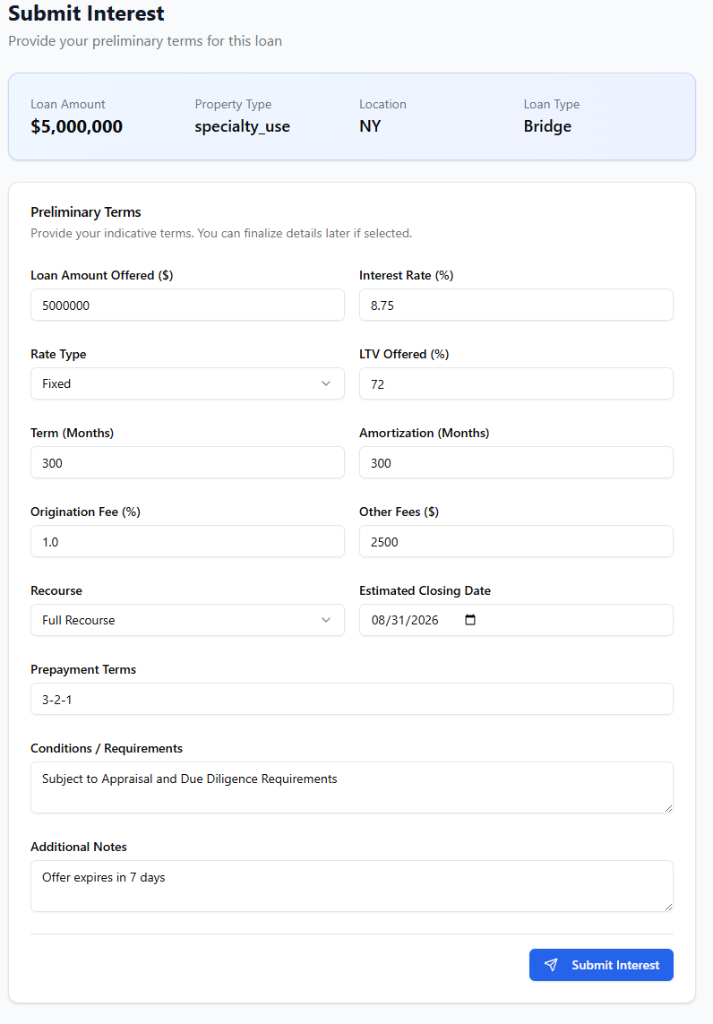
8.1 Loan Summary Banner
At the top of the Submit Interest page, a blue summary banner recaps the four key facts about the loan: the requested loan amount, property type, state, and loan type. This is provided so that you do not need to navigate away to confirm which loan you are responding to.
8.2 Completing the Preliminary Terms Form
The form contains the following fields. Only the "Loan Amount Offered" field is strictly required, but providing as much detail as possible will make your offer more competitive:
- Loan Amount Offered ($). The dollar amount your organization is willing to lend. This field is pre-filled with the borrower's requested amount; you may adjust it to reflect your own offer.
- Interest Rate (%). Your proposed annual interest rate, entered as a decimal number (for example, 8.5 for 8.5%).
- Rate Type. Choose Fixed, Variable, or Hybrid from the dropdown.
- LTV Offered (%). The loan-to-value ratio your organization is willing to lend up to.
- Term (Months). The proposed loan duration in months.
- Amortization (Months). The amortization schedule in months. For example, a loan with a 60-month term and a 360-month amortization would have a balloon payment at month 60.
- Origination Fee (%). Your origination fee, expressed as a percentage of the loan amount (for example, 1.5 for 1.5 points).
- Other Fees ($). Any additional flat fees, such as a processing or underwriting fee.
- Recourse. Select Full Recourse, Partial Recourse, or Non-Recourse.
- Estimated Closing Date. A calendar date field for your anticipated funding date.
- Prepayment Terms. A text field where you may describe your prepayment penalty structure (for example, "5/4/3/2/1" or "No Prepayment Penalty").
- Conditions / Requirements. A free-text area for any conditions that must be met before you will issue a formal term sheet (for example, "Subject to satisfactory appraisal" or "Full recourse guaranty from all principals required").
- Additional Notes. A free-text area for any other information you wish to communicate.
8.3 Submitting the Form
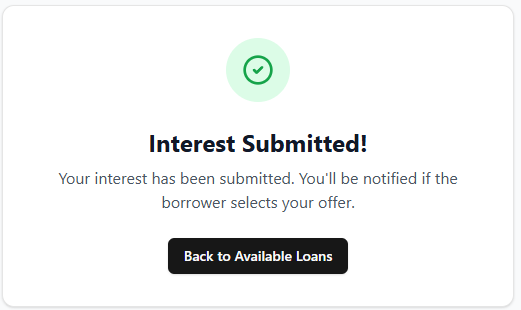
Once you are satisfied with your entries, click the blue "Submit Interest" button at the bottom right of the form. The button will display a spinning indicator while your submission is being processed. When the submission is complete, a green confirmation screen will appear with the message "Interest Submitted!" You may then click "Back to Available Loans" to review additional opportunities.
9. Tracking Your Term Sheets
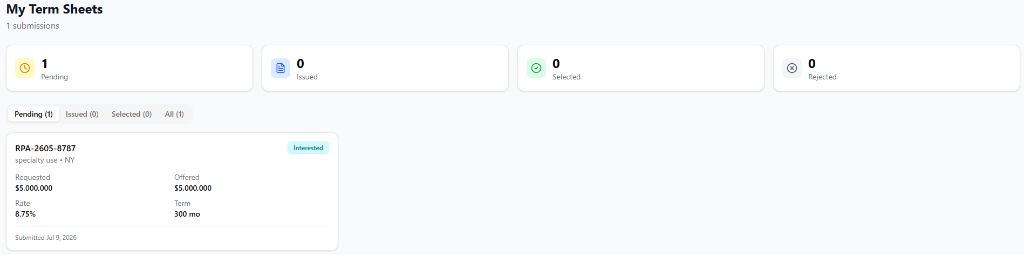
The Term Sheets page provides a dedicated view of every interest submission you have made, organized by stage. You may access it by clicking "Term Sheets" in the left-hand navigation sidebar.
9.1 Status Summary Cards
Four summary cards at the top of the page display counts across four categories:
- Pending (yellow): Submissions that have been received by the platform but on which no decision has been made yet.
- Issued (blue): Formal term sheets that have been issued to the borrower by the RPA team on your behalf.
- Selected (green): Term sheets that the borrower has accepted, advancing the loan to the processing stage.
- Rejected (gray): Submissions that were not selected by the borrower, or loans that you declined.
9.2 Tabs
Four tabs allow you to browse submissions by category: Pending, Issued, Selected, and All. Each card within the tabs shows the application number, property type and state, the borrower's requested amount, your offered amount, the interest rate, the term, the submission date, and whether the submission has been selected.
10. Analytics
The Analytics tab on your Dashboard provides data visualizations that summarize your activity and performance on the platform. To view it, click the "Analytics" tab at the top of the Pipeline section of the Dashboard.
The Analytics section contains the following components:
- Performance Metrics. Key statistics summarizing your overall engagement, such as total submissions, total accepted, and total funded volume.
- Loan Type Distribution. A chart showing the breakdown of your submissions by loan type.
- Property Type Distribution. A chart showing the breakdown of your submissions by property type.
- Geographic Distribution. A chart or map showing the states in which you have submitted interest, providing a visual representation of your lending geography.
These charts are updated automatically as you engage with new loan opportunities and submit interest.
11. Notifications
The notification bell icon in the upper right of the Dashboard header shows you real-time alerts. Clicking it opens the Notification Center panel, which lists recent activity relevant to your account.
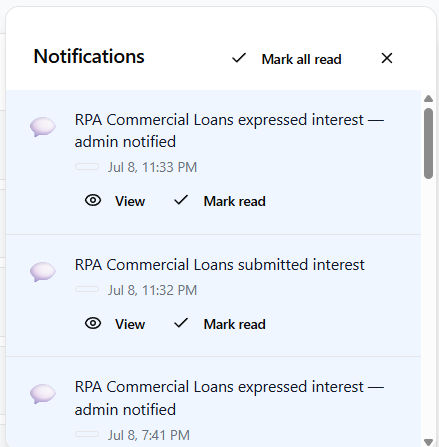
Types of notifications you may receive include:
- A new loan opportunity has been posted that matches one of your loan programs.
- A borrower has selected your term sheet.
- A loan program you submitted has been approved or requires changes.
- An application you were matched with has reached a new status milestone.
In addition to in-platform notifications, email notifications are sent to the address on your account for significant events such as term sheet selections and program approvals.
12. Glossary
The following terms are used throughout this manual and throughout the RPA Commercial Loans platform. They are provided here for reference.
Amortization
The process of paying off a loan through regular scheduled payments. The amortization term determines the monthly payment amount; for example, a 30-year (360-month) amortization on a 5-year loan results in a large balloon payment at the end of year five.
ARV (After Repair Value)
The estimated market value of a property after all planned renovations or improvements have been completed. Commonly used in fix-and-flip and construction loan underwriting.
Bridge Loan
A short-term loan (typically 6 to 36 months) used to "bridge" the gap between an immediate financing need and the availability of longer-term financing. Often used for property acquisitions or stabilization.
CMBS (Commercial Mortgage-Backed Security)
A type of commercial real estate loan that is pooled with other loans and sold as a security on the secondary market. CMBS loans typically have longer fixed-rate terms and strict prepayment penalties.
CPACE (Commercial Property Assessed Clean Energy)
A financing mechanism that funds energy efficiency and renewable energy improvements to commercial properties, repaid through a property tax assessment.
Credit Event Seasoning
The minimum amount of time that must have elapsed since a borrower's bankruptcy filing or foreclosure before a lender will consider them for a new loan.
DSCR (Debt Service Coverage Ratio)
A measure of a property's ability to cover its debt obligations from its net operating income. A DSCR of 1.25 means the property generates 25% more income than is required to service the debt. Lenders typically require a minimum DSCR of 1.20 to 1.25.
Debt Yield
A measure calculated by dividing a property's Net Operating Income (NOI) by the total loan amount. It is used as an alternative to LTV and DSCR to assess loan risk, independent of interest rate or amortization.
Exit Strategy
The borrower's plan for repaying the loan at or before maturity. Common exit strategies include selling the property, refinancing into a permanent loan, or holding the property long-term with cash flow sufficient to service the debt.
FICO Score
A credit score calculated by the Fair Isaac Corporation, ranging from 300 to 850. Lenders use the "mid-score," which is the middle value of scores reported by the three major credit bureaus (Equifax, Experian, and TransUnion).
Good Faith Deposit
A sum of money paid by the borrower to the lender upon acceptance of a term sheet, demonstrating the borrower's serious intent to proceed. It may or may not be refundable depending on the lender's program.
Hard Money Loan
A short-term loan secured primarily by the value of the collateral property rather than the creditworthiness of the borrower. Interest rates and fees are typically higher than conventional loans due to the increased risk and speed of funding.
Interest-Only (IO)
A loan structure in which the borrower pays only the interest portion of the payment during a specified period, with no principal reduction. After the IO period, the loan either converts to a fully amortizing payment or becomes due.
Kanban Board
A visual project management tool that organizes items into columns representing stages of a process. In the RPA platform, the Pipeline tab uses a Kanban board to show loan opportunities at each stage of your engagement.
LTC (Loan-to-Cost)
A ratio that compares the loan amount to the total cost of a project (purchase price plus rehabilitation or construction costs). Used primarily in construction and fix-and-flip lending.
LTV (Loan-to-Value)
A ratio that compares the loan amount to the appraised or estimated market value of the collateral property. A lower LTV represents less risk to the lender. For example, a $750,000 loan on a $1,000,000 property represents a 75% LTV.
Loan Program
A defined set of lending criteria and parameters that a Funder enters into the RPA platform to describe the types of loans they are willing to fund. Programs are used by RPA's matching system to identify suitable loan opportunities for each Funder.
Mid-Score
The middle of the three credit scores reported by Experian, TransUnion, and Equifax for a borrower. If only two scores are available, the lower of the two is used. Lenders typically use the mid-score for qualification purposes.
NOI (Net Operating Income)
The income a property generates after all operating expenses (such as maintenance, property management, insurance, and taxes) have been deducted, but before debt service. NOI is a key measure of a commercial property's financial performance.
Non-Recourse Loan
A loan in which the lender's only remedy in the event of default is to take possession of the collateral property. The borrower is not personally liable for any deficiency if the property value is insufficient to repay the debt.
Origination Fee
A fee charged by the lender for processing and underwriting a new loan. It is typically expressed as a percentage of the loan amount (also called "points"). One point equals 1% of the loan amount.
Pipeline
In the context of the RPA Funder Portal, "pipeline" refers to the collection of all loan opportunities you are currently engaged with, across all stages from initial viewing through funded.
Prepayment Penalty
A fee charged to the borrower if the loan is paid off before a specified date or within a specified period. Common structures include step-down penalties (such as 5/4/3/2/1, meaning a 5% penalty in year one, 4% in year two, and so on) and yield-maintenance provisions.
Recourse
In lending, "recourse" refers to whether a lender can pursue the borrower's personal assets beyond the collateral property in the event of default. A full-recourse loan allows this; a non-recourse loan does not (subject to limited exceptions called "carve-outs").
Reserves
Liquid funds that a borrower is required to hold after loan closing to demonstrate the ability to cover several months of debt service payments. Often expressed as a number of months of principal, interest, taxes, insurance, and association fees (PITIA).
SBA Loan (Small Business Administration)
A loan program backed by the U.S. federal government through the Small Business Administration. The two most common commercial real estate programs are the SBA 7(a) loan and the SBA 504 loan.
Seasoning
In lending, "seasoning" refers to the length of time that has passed since a specific event, such as a bankruptcy discharge, a foreclosure, or a property purchase. Many lenders require minimum seasoning periods before a borrower or property qualifies for a loan.
Term Sheet
A non-binding written summary of the key financial terms that a lender is proposing for a loan, including the loan amount, interest rate, term, fees, and conditions. A term sheet is issued after a lender has expressed interest and is intended to initiate formal negotiations.
USDA Loan (United States Department of Agriculture)
A government-backed loan program designed to support financing for properties in eligible rural and suburban areas.
Become an RPA Funder Today
Complete your registration to start receiving matched loan opportunities, submitting term sheets, and growing your lending pipeline.
RPA Commercial Loans | Funder Portal User Manual | June 2026
Questions? Visit our Contact page or email support@rpacommercialloans.com.
Have a question?
I'm Robert, your RPA assistant. Ask me about loan programs, applications, or partner onboarding.