Loan Originator & Broker Partner Guide
RPA Commercial Loans | Partner Edition | July 2026
RPA Commercial Loans
Loan Originator & Broker Partner Manual
Edition: July 2026
Designed for Registered Loan Originators, Brokers & Referral Partners
Quick Contact
Phone: (844) 250-5626
Email: support@rpacommercialloans.com
Website: www.rpacommercialloans.com
CONFIDENTIALITY NOTICE: This document is intended exclusively for registered loan originator and broker partners of RPA Commercial Loans. Unauthorized reproduction or distribution is prohibited.
© 2026 RPA Commercial Loans. All Rights Reserved.
Ready to Add Commercial Loans to Your Pipeline?
Register as an RPA Loan Originator to submit commercial loan applications, access the CRM, and earn on every funded deal. Free to join.
1. Welcome
Welcome to the RPA Commercial Loans Partner Portal. This manual is written for loan originators, brokers, and referral agents who submit commercial loan applications on behalf of their clients through the RPA platform. Whether you are a seasoned commercial mortgage professional or new to the RPA system, this guide will walk you through every step of your workflow, from registering your account to tracking funded deals, managing leads in the CRM, and earning commissions.
As a partner, your primary function on the platform is to originate and submit loan applications for your clients (borrowers). RPA's team of loan officers will review each application, gather any additional documentation required, and submit qualified deals to appropriate funding partners. You will be able to track the status of every application you submit in real time.
2. Registering as a Partner
To gain access to the Partner Portal, you must first complete a registration request. RPA supports four partner types: Loan Originator, Broker, Referral Agent, and Lender/Funder. This manual covers the Loan Originator and Broker registration flows.
2.1 Starting Your Registration
Navigate to www.rpacommercialloans.com/partners/loan-originator (for loan originators) or /partners/broker (for brokers). Click the "Apply to Partner" or "Register Now" button to open the multi-step registration form.
2.2 Registration Form Fields
- Full Name (required). Your legal first and last name.
- Email Address (required). The email you will use to log in. Must be valid and active, your activation link will be sent here.
- Phone Number (required). Your direct contact number.
- Company Name. Your brokerage or origination firm name, if applicable.
- License Number and State. For brokers, your state-issued mortgage broker or real estate license number and state of issuance.
- Website and LinkedIn URL. Optional, but helpful for the RPA team in verifying credentials.
- Years of Experience. How many years you have been originating or brokering commercial loans.
- Head and Shoulders Photo. A professional photograph used on your partner profile within the platform.
- W-9 Information. Your legal name, business name (if different), tax classification, address, and SSN or EIN. Required for commission payments and W-9 generation.
- Password. Choose a secure password. You must enter it twice to confirm.
2.3 Signing Your W-9 and Partner Agreement
After submitting your form, you will receive two documents to sign electronically via DocuSeal:
- IRS Form W-9. Pre-filled with your registration information. Review for accuracy and sign.
- Partner Agreement. The RPA Commercial Loans Partner Agreement outlining commission structure, obligations, and terms.
2.4 Approval and Account Activation
Once both documents are signed, the RPA team will review your registration (typically within one to two business days). When approved, you will receive a welcome email with a link to activate your account. If not approved, you will receive an explanation and may reapply.
3. Logging In
Once your account is activated, log in at www.rpacommercialloans.com/login-info at any time.
Visit the login page.
Enter your credentials.
You are redirected to your Loan Originator Portal.
4. Your Dashboard
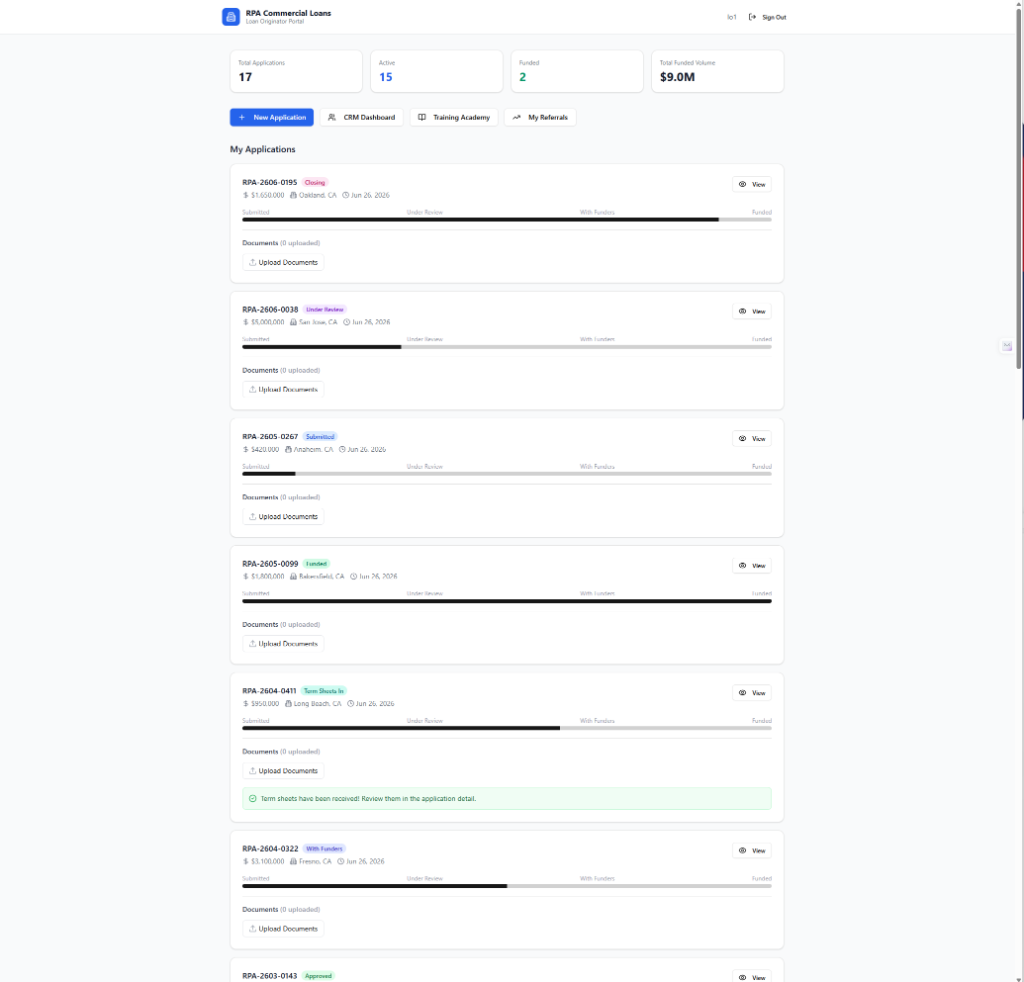
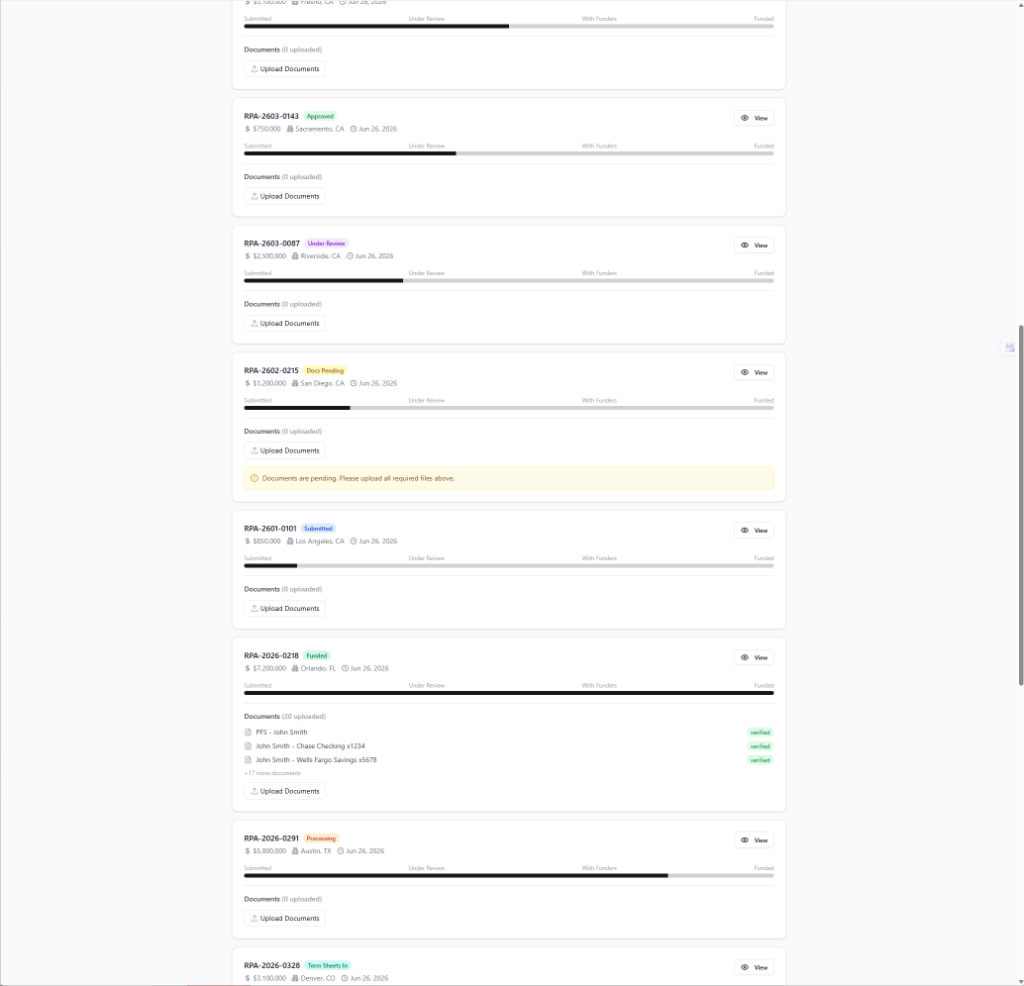
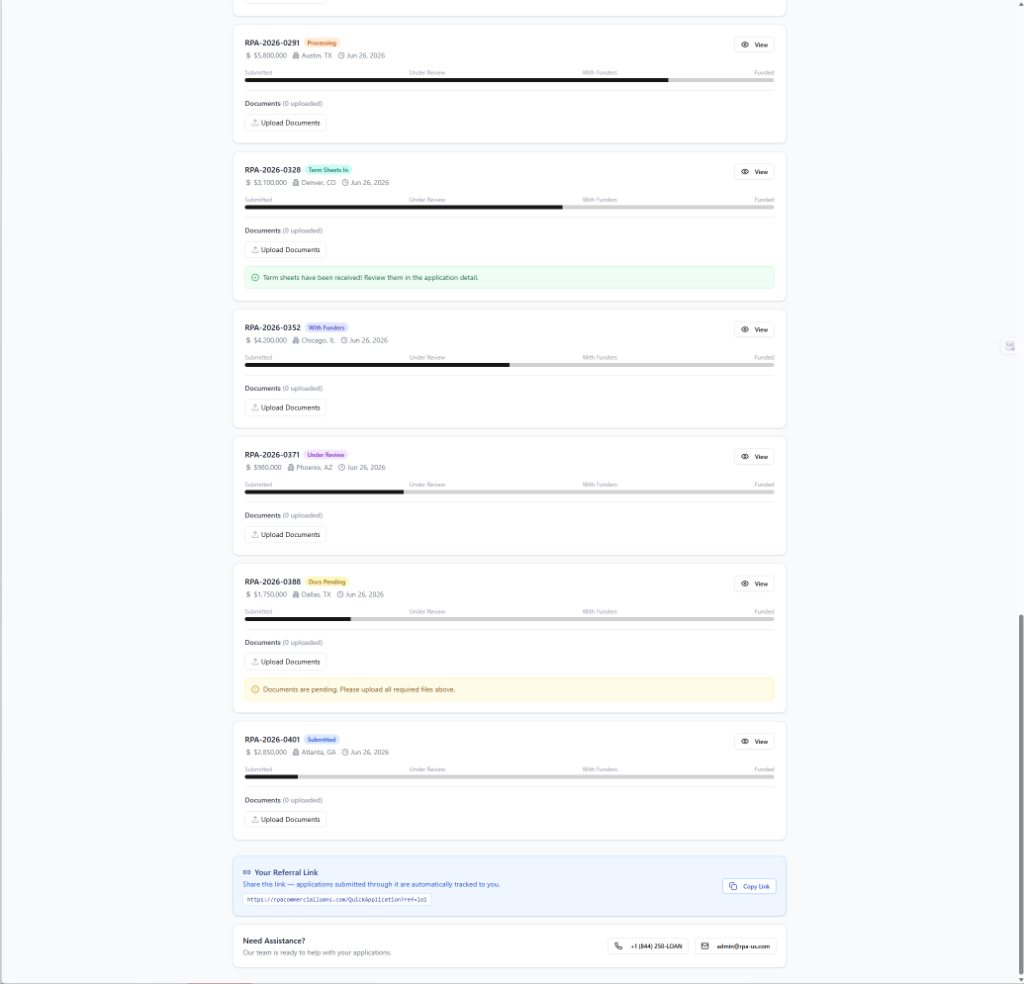
After logging in, your dedicated Loan Originator Portal gives you a complete overview of all applications you have submitted, quick-action buttons, and direct access to key tools. The screenshots below show the full dashboard, including the application list, progress bars, document sections, and referral link at the bottom.
4.1 Summary Statistics
| Card | Meaning |
|---|---|
| Total Applications | All applications you have submitted through the portal. |
| Active | Applications currently moving through the RPA pipeline (not yet funded, declined, or withdrawn). |
| Funded | Applications that have successfully closed and been funded. |
| Total Funded Volume | Combined dollar amount of all funded loans you have originated, displayed in millions. |
4.2 Quick Action Buttons
- New Application, Opens the Quick Application form to submit a new loan.
- CRM Dashboard, Opens your lead and relationship management tool.
- Training Academy, Opens the RPA Commercial Lending Professional Certification course.
- My Referrals, Shows a table of all applications submitted through your referral link.
4.3 Application Cards
Each application is displayed as a card showing the Application Number, status badge, loan amount, property city/state, and submission date. A progress bar under each card visualizes where the application is in the pipeline (Submitted → Under Review → With Funders → Funded). If term sheets have been received, a green notice appears on the card. If documents are pending, a yellow notice appears reminding you to upload files.
Each card also has an expandable Documents section showing how many files have been uploaded. Click Upload Documents to add files directly from the dashboard without leaving the page.
4.4 Navigation Sidebar
- Dashboard, Returns to your Loan Originator Portal home.
- CRM, Opens the CRM lead manager.
- Training Academy, Opens the certification course.
- My Referrals, Lists all applications you have submitted in a detailed table view.
- New Application, Opens the Quick Application form.
5. Submitting a New Application
Click New Application in the left sidebar or the + New Application button on your Dashboard to open the Quick Application form. The form is divided into five steps shown at the top of the page: Your Account → Loan Details → Property → Contact → Review. Each step must be completed before advancing to the next.
5.1 Step 1, Loan Details
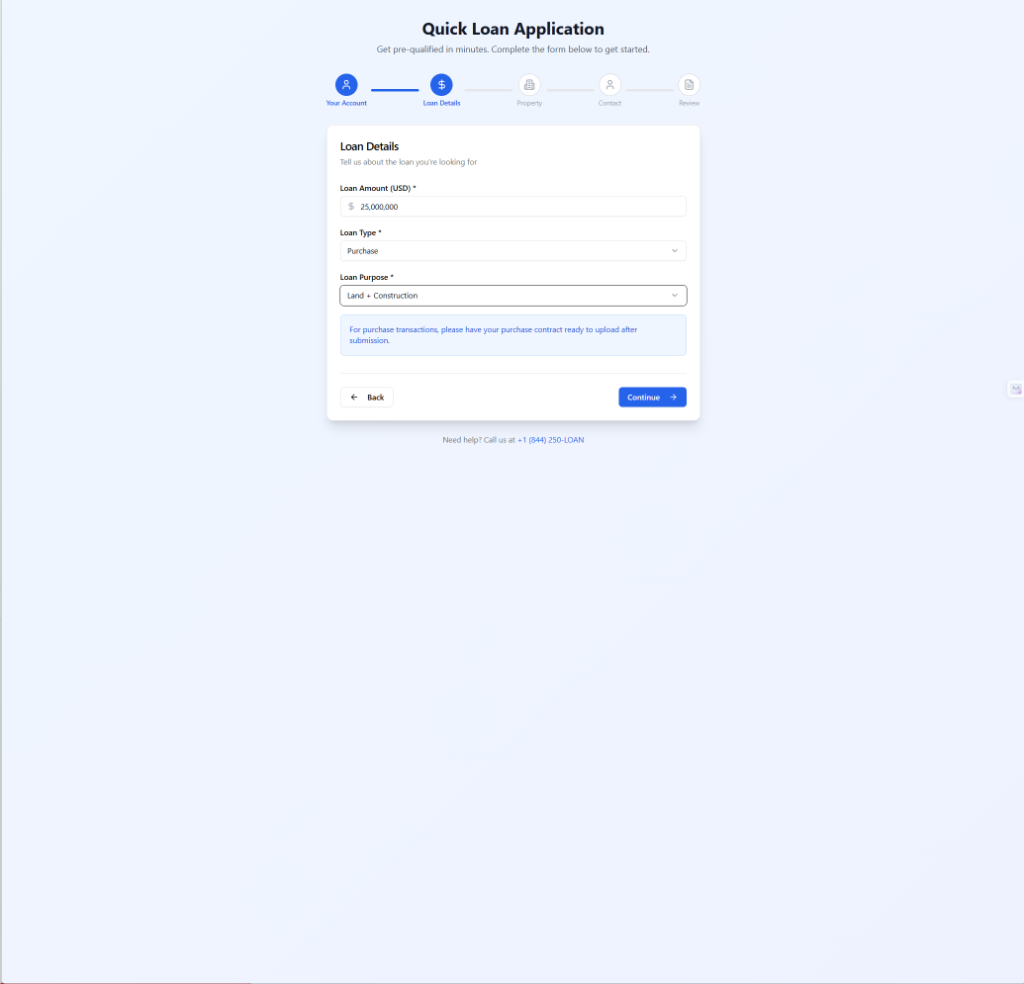
This step collects the three core loan parameters. All three fields are required before you can proceed.
- Loan Amount (USD), required. Enter the total dollar amount the borrower is requesting. Type the number without formatting, the field will auto-format it. Example: type 1500000 and it displays as $1,500,000. For very large loans ($25M+), confirm the amount is correct before proceeding.
- Loan Type, required. Select the category of financing from the dropdown. See Section 6 for detailed explanations of each type and when to use them. Common selections include Purchase, Refinance, and Working Capital / Equipment / Franchise.
- Loan Purpose, required. Refines the transaction within the selected loan type. Options include Existing Property, Fix & Flip, Land, Land + Construction, Cash Out, Rehabilitation, Construction, Working Capital, Equipment, and Franchise. After selecting a purchase-related purpose, a blue notice appears reminding you to have the purchase contract ready to upload after submission.
5.2 Step 2, Property Information
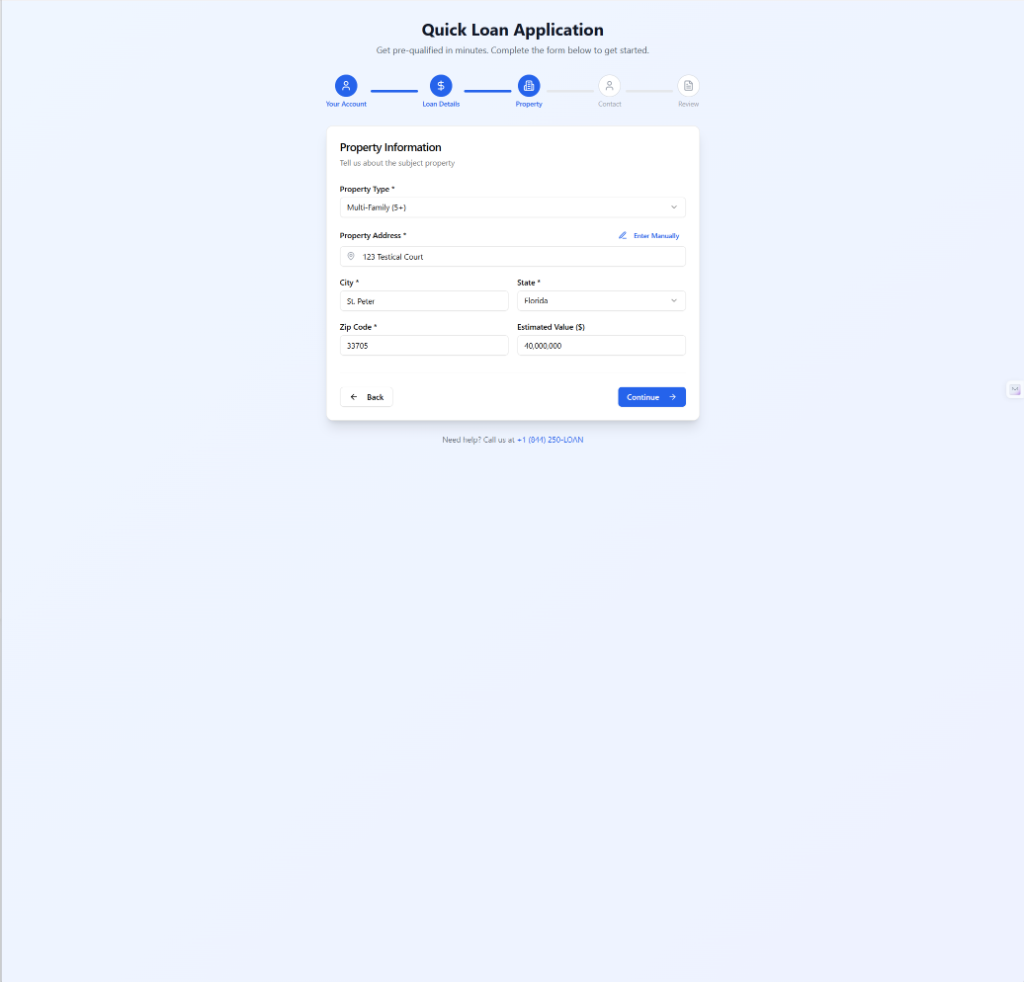
This step collects information about the subject property, the specific real estate asset that will secure the loan.
- Property Type, required. Select the type that best describes the property. Options include Single Family Residence (SFR), Multifamily 2 to 4 units, Multifamily 5+ units, Condo, Vacant Land, Land Development, Office, Retail, Industrial, Hotel/Motel, Public Storage, Mobile Home Park, Shopping Center, Strip Mall, Hospital, Senior Living, Mixed Use, and Other. See Section 6 for guidance on selecting the right type.
- Property Address, required. Begin typing the street address. The system uses Google Maps autocomplete to suggest matching addresses. Selecting from the dropdown will auto-fill the City, State, and ZIP fields. If the address is not found (e.g., a rural property or new construction), click Enter Manually in blue at the top right of the field to type all fields by hand.
- City, State, ZIP Code, required. Auto-filled when you select from the address dropdown. For manual entry, type each field individually.
- Estimated Value ($), optional at this stage. The borrower's best estimate of current market value. For purchase transactions, this is typically the purchase price or appraised value. For refinances, use the current estimated market value. For construction loans, use the projected value after completion (ARV).
5.3 Step 3, Contact Information
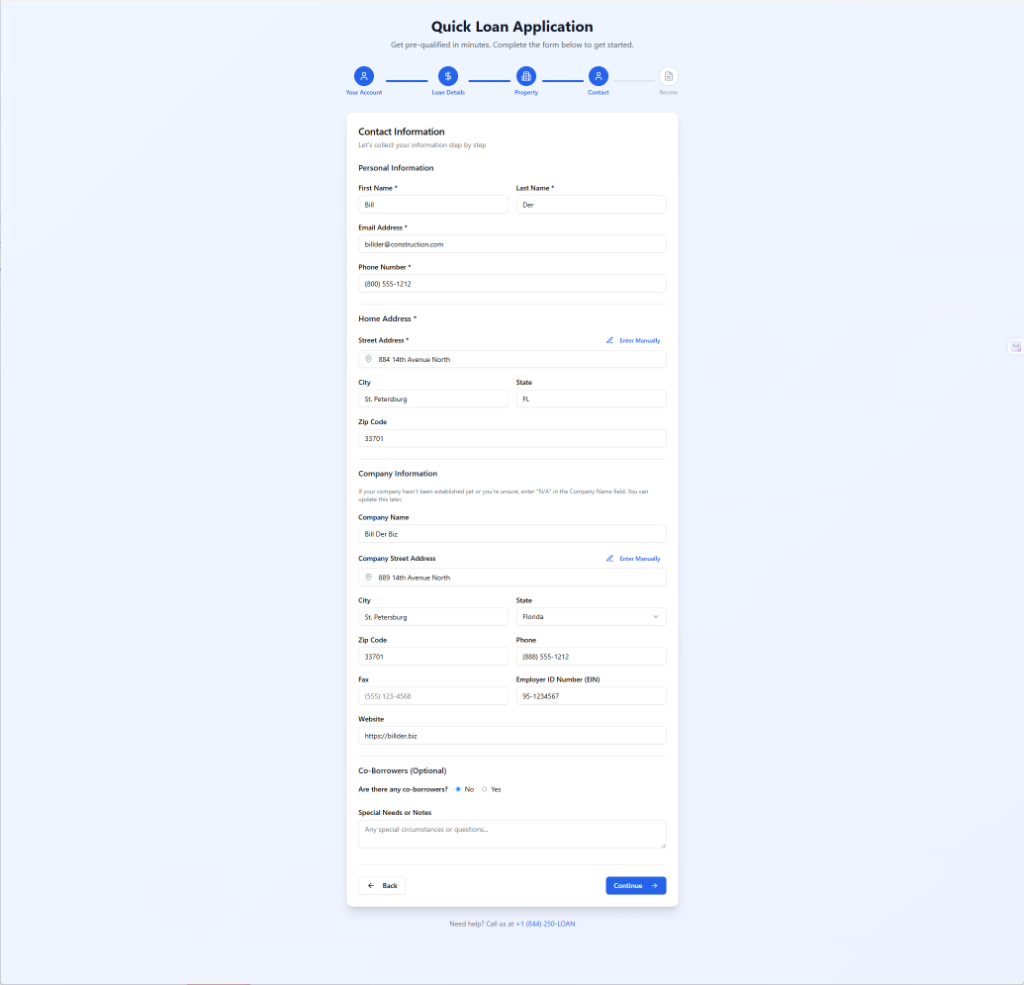
This step collects the borrower's personal and company information.
Personal Information
- First Name / Last Name, required. The primary borrower's legal name.
- Email Address, required. The borrower's email. They will receive an invitation to log in and upload documents.
- Phone Number, required. Primary contact number, formatted as (800) 555-1212.
- Home Address, required. The borrower's residential address. Use the Google autocomplete or click "Enter Manually."
Company Information
The Company Name field should contain the name of the entity that is the primary borrower on the loan, the LLC, corporation, partnership, or trust that will hold title to the property and be listed on the loan documents. This is not necessarily the name of every business the borrower owns.
- Company Street Address. The registered address of the borrowing entity. Often the same as the borrower's home address for small operators.
- Employer ID Number (EIN). The federal tax ID of the borrowing entity, in the format 95-1234567. If not yet established, enter "N/A."
- Website. Optional. The company's business website.
Co-Borrowers (Optional)
If there are additional guarantors, co-borrowers, or equity partners on the loan, select Yes under "Are there any co-borrowers?" A loan officer will follow up to collect their information. Select No if there is only one borrower.
Special Needs or Notes
Use this free-text field for anything that does not fit the structured fields, for example: "Borrower has a pending 1031 exchange with a 30-day close deadline," or "Property is under lease to a national tenant; lease expires in 18 months," or "Borrower had a short sale 4 years ago."
5.4 Step 4, Review & Submit
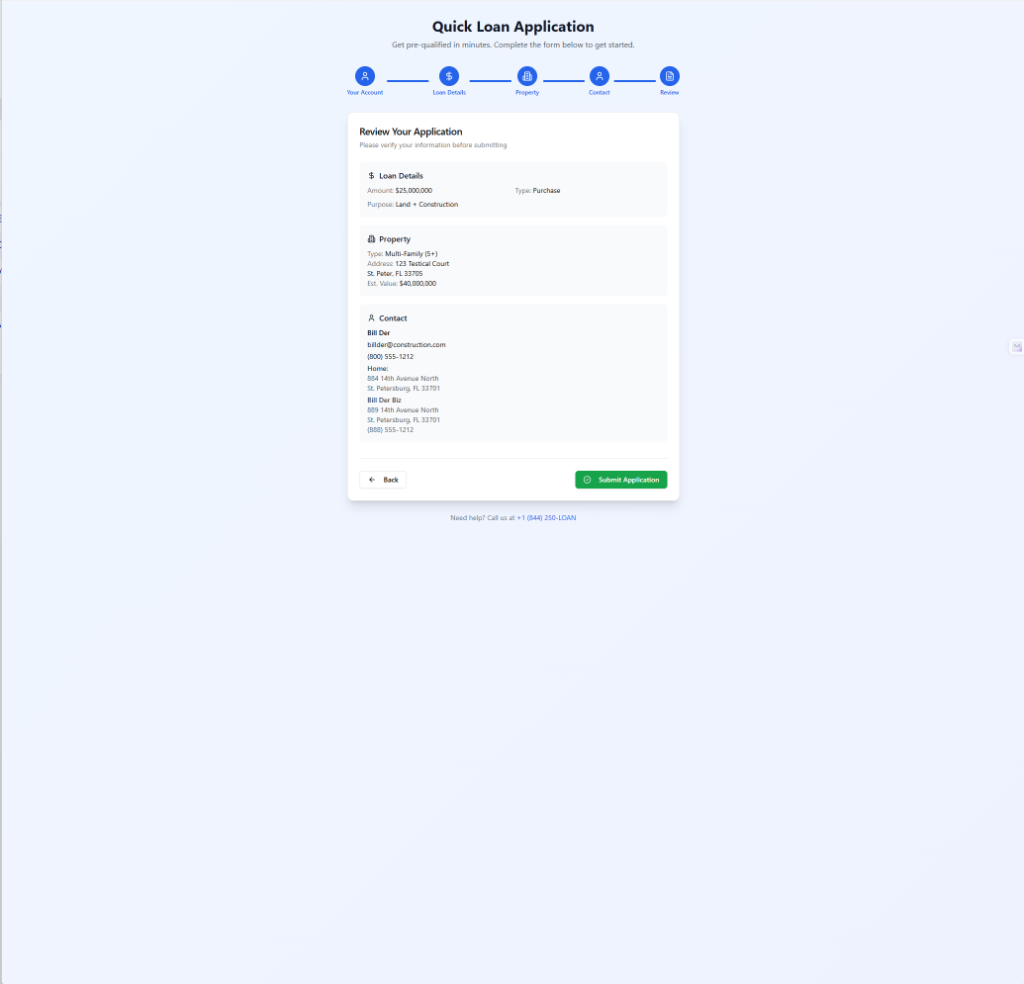
The Review screen displays a summary of all information entered across the three prior steps, organized into three cards: Loan Details, Property, and Contact. Review each section carefully. If anything is incorrect, click the ← Back button to return to the relevant step and make corrections.
When everything looks correct, click the green Submit Application button. The system will create the application record and display a confirmation screen.
5.5 Confirmation Page
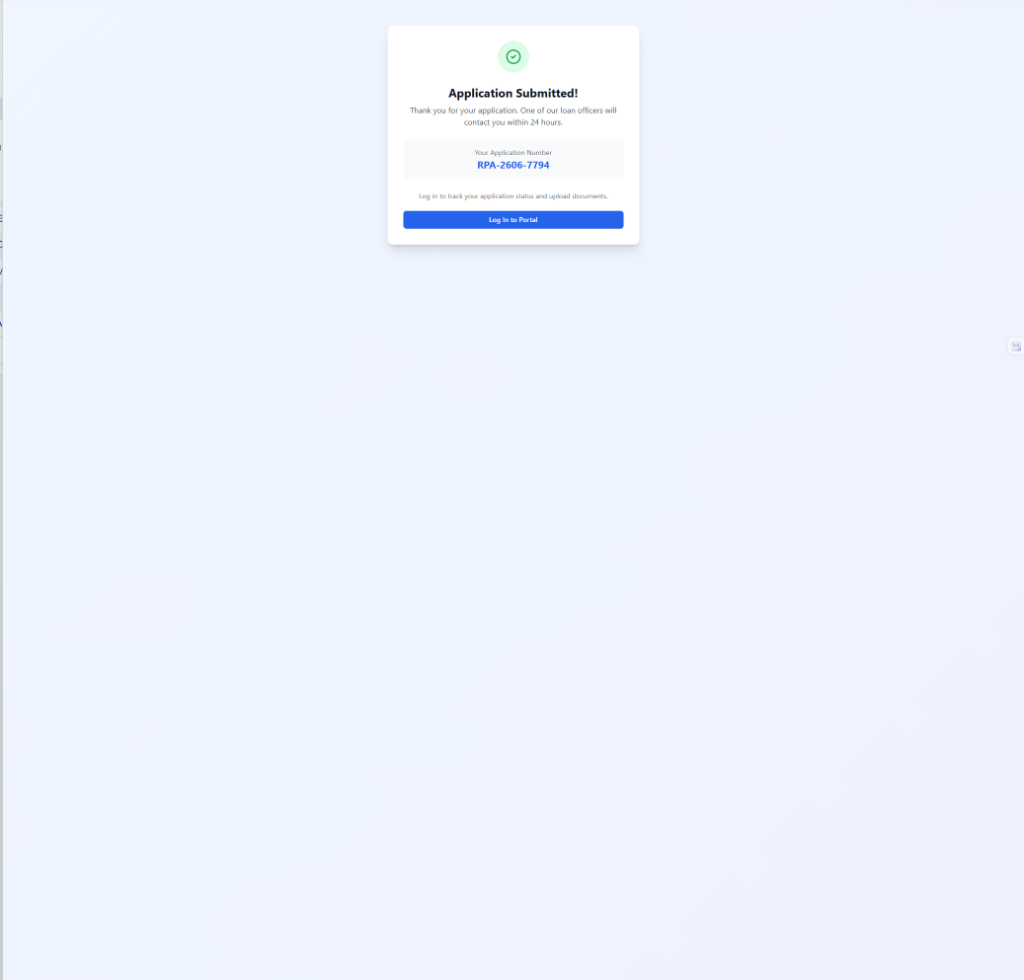
After submission, a green confirmation screen displays the message "Application Submitted!" along with the unique Application Number (format: RPA-YYMM-NNNN). Write this number down or take a screenshot, it is the reference number for all future communications about this loan.
The confirmation page also prompts you to Log In to Portal to track the application status and begin uploading documents. The borrower will simultaneously receive an email invitation to create their own portal login.
6. Loan & Property Types Explained
Selecting the correct loan type and property type is critical to getting the right funders interested in your deal. Below is a guide to the most common options available in the Quick Application.
6.1 Loan Types
Bridge Loan
When to use: Short-term financing (6 to 36 months) used to bridge a gap, for example, acquiring a property quickly before lining up permanent financing, or stabilizing a vacant building before refinancing.
Common property types: Multifamily, office, retail, industrial, mixed use, hotel.
Key signal: Speed and flexibility are priorities. Borrower will refinance out within 1 to 3 years.
Conventional
When to use: Longer-term, lower-rate financing for stabilized income-producing properties. Typically 5 to 30 year terms.
Common property types: Multifamily 5+, office, retail, industrial, self-storage.
Key signal: Property is at least 90% occupied and cash-flowing well. Borrower has strong credit and experience.
SBA 7(a) Loan
When to use: Small Business Administration guaranteed loan for owner-occupied commercial real estate or business acquisition. The borrower's business must occupy at least 51% of the property.
Common property types: Office, retail, light industrial, restaurant, medical.
Key signal: Borrower is a business owner, not an investor. Long terms (up to 25 years), lower down payment (as low as 10%).
SBA 504
When to use: Fixed-rate, long-term SBA financing for owner-occupied commercial real estate or major equipment purchases over $1M.
Common property types: Office, industrial, manufacturing, medical.
Key signal: Similar to 7(a) but structured as two loans, a conventional first and an SBA second. Lower interest rate on the SBA portion.
Fix & Flip
When to use: Short-term loan (6 to 18 months) to purchase and renovate a residential or small commercial property for resale.
Common property types: SFR, multifamily 2 to 4, small mixed use.
Key signal: Borrower has experience flipping properties. After Repair Value (ARV) is a key underwriting metric.
Construction
When to use: Financing for ground-up construction of a new building or major renovation of an existing structure.
Common property types: Any property type, multifamily, industrial, retail, SFR.
Key signal: Funds are disbursed in draws as construction milestones are completed. Borrower needs construction experience and a signed general contractor.
Hard Money
When to use: Asset-based, short-term lending where the property value matters more than the borrower's credit or income. Higher rates, but fast closes (as little as 7 to 14 days).
Common property types: SFR, multifamily, commercial, almost any property.
Key signal: Speed is the primary driver. Often used when a borrower has credit issues or needs to close before conventional financing can be arranged.
USDA
When to use: U.S. Department of Agriculture backed loans for properties in designated rural and semi-rural areas. Can include business development loans.
Common property types: Rural commercial, hospitality, small business in eligible zones.
Key signal: Property must be in a USDA-eligible rural zone. Check eligibility at the USDA website before selecting this type.
C-PACE
When to use: Commercial Property Assessed Clean Energy financing. Used to fund energy efficiency upgrades, solar, roofing, HVAC, water conservation, and seismic improvements. Repaid as a property tax assessment.
Common property types: Any commercial property type.
Key signal: Not a traditional loan, it is an assessment that transfers with the property. Long terms (up to 30 years), fixed rates. Often layered with other financing.
Working Capital
When to use: Unsecured or lightly secured business financing for operating needs, payroll, inventory, receivables, marketing, growth.
Common property types: No property required. Based on business revenues and cash flow.
Key signal: The loan purpose is the business operation, not real estate. Choose "Working Capital" as both the loan type and purpose.
Accounts Receivable
When to use: Financing based on a business's outstanding invoices. The receivables serve as collateral.
Common property types: No property required.
Key signal: The borrower has a B2B business with documented receivables from creditworthy customers.
Franchise
When to use: Financing for the purchase or expansion of a franchise business, including SBA-backed franchise financing.
Common property types: Restaurant, retail franchise, service franchise locations.
Key signal: The franchise must be on an SBA-approved list. Borrower needs liquid capital to cover the franchise fee and initial operating costs.
6.2 Property Types
| Property Type | Description & Notes |
|---|---|
| Single Family Residence (SFR) | A standalone 1-unit home. Select for fix & flip, DSCR rental, or hard money deals on houses. |
| Multifamily 2 to 4 Units | Duplex, triplex, or fourplex. Can qualify for residential loan programs. Underwritten on rental income. |
| Multifamily 5+ Units | Apartment buildings with 5 or more units. Strictly commercial underwriting, based on NOI and DSCR. |
| Condo | An individually owned unit within a larger building. Warrantable vs. non-warrantable condo status affects eligibility. |
| Vacant Land | Unimproved land with no structure. Requires land loan or bridge financing. Higher LTV risk for lenders. |
| Land Development | Land being subdivided or entitled for residential or commercial development. |
| Office | Buildings used for professional or administrative purposes. Specify if single-tenant or multi-tenant. |
| Retail / Strip Mall / Shopping Center | Freestanding retail, inline shops, or anchored centers. Tenant mix and lease terms are critical. |
| Industrial | Warehouses, distribution centers, manufacturing plants, flex/industrial. Strong demand sector. |
| Hotel / Motel | Flagged or independent hospitality properties. Flag (brand) matters significantly to lenders. |
| Public Storage / Self-Storage | Self-storage facilities. Underwritten on occupancy, unit count, and revenue per square foot. |
| Mobile Home Park | Land-lease communities. Unique underwriting, based on lot rents and park-owned home income. |
| Mixed Use | Buildings with both residential and commercial components (e.g., retail on ground floor, apartments above). |
| Senior Living | Assisted living, memory care, independent living. Requires operator and licensing review. |
| Hospital / Medical | Medical office buildings, outpatient surgery centers, hospitals. |
| Other | If none of the above apply, select Other and describe the property type in the Special Notes field. |
7. Tracking Applications
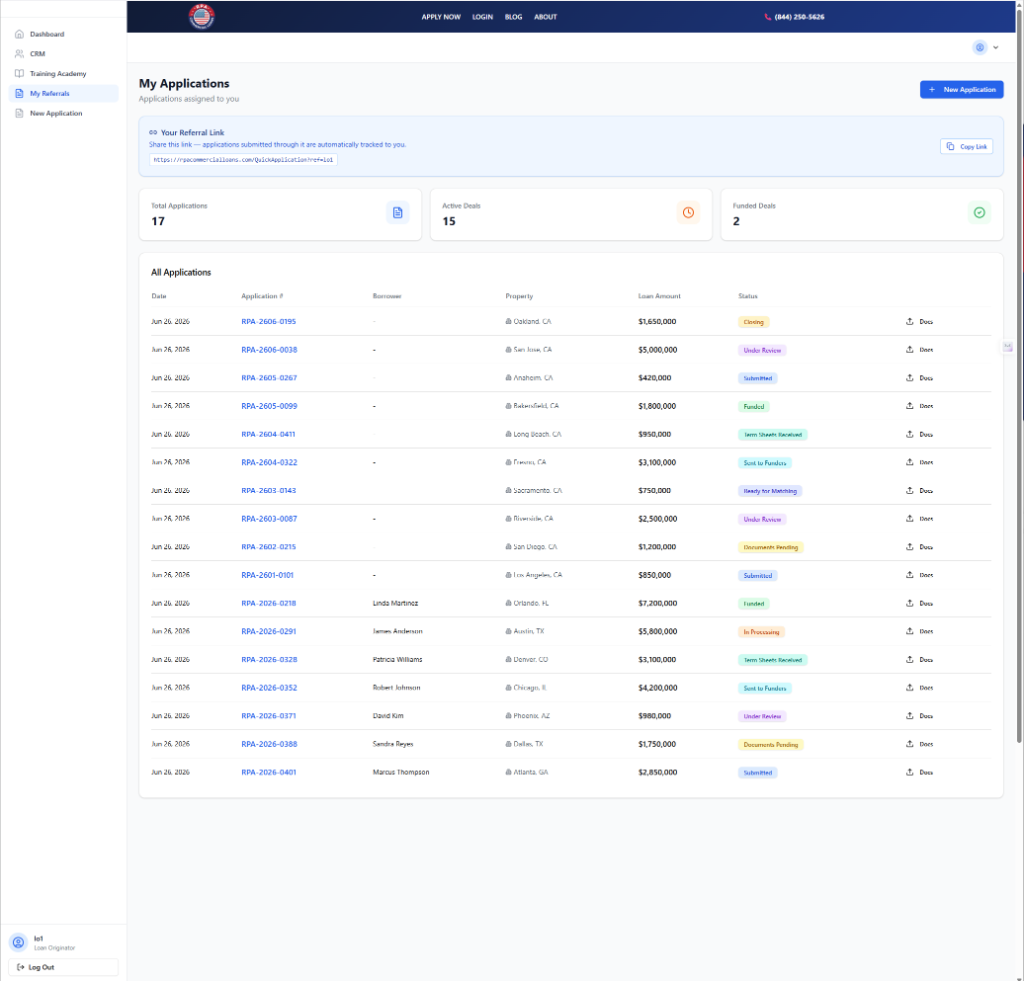
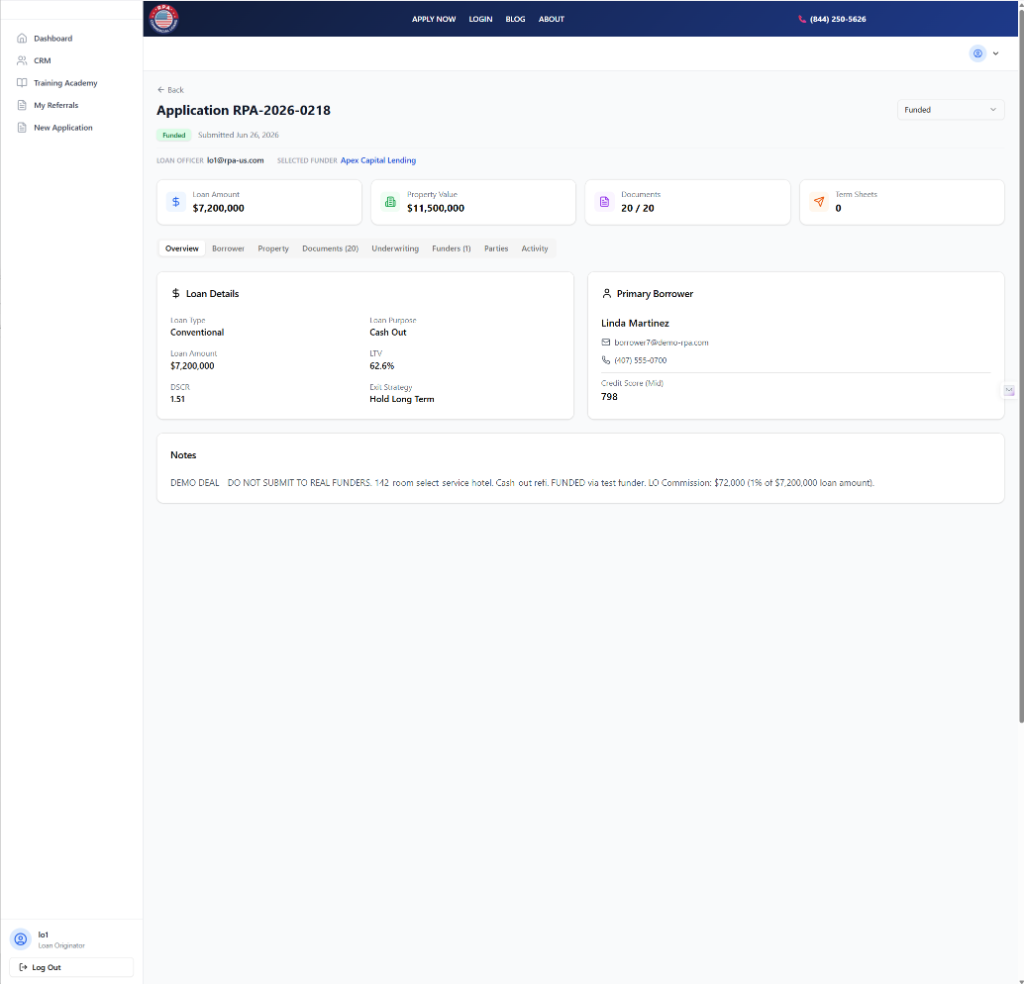
Monitor all submitted applications from your Dashboard (cards with progress bars) or from My Referrals in the sidebar (a detailed table view with all applications in one list).
7.1 Application Status Flow
| Status | What It Means |
|---|---|
| Draft | Started but not yet submitted. |
| Submitted | Submitted and awaiting loan officer assignment. |
| Documents Pending | Loan officer has requested additional documents. |
| Under Review | Loan officer is actively reviewing the complete package. |
| Approved for Matching | Passed internal review; will be submitted to funders. |
| Submitted to Funders | Sent to matched lending partners for review. |
| Term Sheets Received | One or more funders have submitted interest. |
| Funder Selected | The borrower has selected a preferred funder's term sheet. |
| In Processing | Loan is in formal underwriting with the selected funder. |
| Closing | Loan is in the closing process. |
| Funded | Loan has closed and funds disbursed. Commission now payable. |
| Declined | Did not qualify for any available programs. |
| Withdrawn | Borrower or originator withdrew the application. |
7.2 Application Detail View
Click View on any application card, or click an Application Number in the My Referrals table, to open the full detail view. The detail page shows tabs for: Overview (loan details, primary borrower, and notes), Borrower, Property, Documents, Underwriting, Funders, Parties, and Activity. The Overview tab shows key metrics including loan amount, property value, document upload count, and term sheets received.
8. Documents
Document collection is one of the most critical parts of the loan process. Incomplete or inaccurate documentation is the most common cause of delays. As a partner, you can upload documents on behalf of your clients, or direct clients to upload through their own borrower portal login.
8.1 Uploading Documents
Documents can be uploaded directly from your Loan Originator Portal dashboard. Each application card shows the number of uploaded files and an Upload Documents button. Click the button, select one or more files, then click "Upload." You can also upload from the full Application Detail page via the Documents tab. Supported formats: PDF, JPG, PNG, HEIC.
8.2 Common Document Requirements
- Government-issued photo ID (driver's license or passport)
- Personal tax returns, last 2 years
- Business tax returns, last 2 years (if applicable)
- Personal financial statement
- Bank statements, last 3 to 6 months (personal and business)
- Rent roll (for income-producing properties)
- T-12 operating statement (trailing 12 months of income/expenses)
- Purchase contract (for purchase transactions)
- Mortgage statement and payoff letter (for refinances)
- Photos of the subject property
- Entity documents (operating agreement, articles of incorporation, EIN letter)
- Construction budget (for construction and fix & flip loans)
9. Your Referral Link
Every partner account is assigned a unique referral URL. When a borrower applies through your link, their application is automatically associated with your account and any commission earned is credited to you, even if you are not logged in at the time the borrower applies.

9.1 Finding Your Referral Link
Your referral link is displayed in two places: at the bottom of your Dashboard (Loan Originator Portal), and at the top of your My Referrals page. The link looks like:
The part after ?ref= is your unique referral code, typically the username portion of your login email (e.g., if you log in as jsmith@gmail.com, your code would be jsmith). Click the Copy Link button to copy it to your clipboard instantly.
9.2 Where to Share Your Link
- Email campaigns to your client database
- LinkedIn posts, Facebook, Instagram
- Your personal or company website ("Apply for a commercial loan")
- Email signature, include a hyperlinked phrase like "Apply Now"
- Text message to a prospect after a phone conversation
- Printed flyers or business cards (as a QR code)
10. Masking Your Referral Link (Making It Clickable)
When you send an email, a long raw URL like https://rpacommercialloans.com/QuickApplication?ref=lo1 can look unprofessional, get flagged as spam, or simply be too long to embed cleanly. Instead, you should mask the link, attach it to a short, professional phrase like "Apply Now" or "Click here to apply".
When a reader clicks that phrase, they are taken directly to your referral link, but the visible text stays clean and professional. Here is how to do it in the most common situations:
10.1 In Gmail or Outlook (Email Compose Window)
Type the phrase you want to link.
Select (highlight) the phrase.
Open the Insert Link dialog.
Paste your referral link.
The phrase is now a hyperlink.
"You can apply here: https://rpacommercialloans.com/QuickApplication?ref=lo1"
Write, "Ready to get pre-qualified? Apply Now and a loan officer will contact you within 24 hours."
The underlined "Apply Now" carries the full referral link invisibly.
10.2 In Google Docs or Microsoft Word (For Flyers or Letters)
Type and select the phrase.
Press Ctrl+K (or ⌘+K on Mac).
Paste your referral URL and click Apply.
10.3 In a LinkedIn Post or Message
LinkedIn does not support hyperlinked text in public posts, you must paste the full URL. However, in LinkedIn Messages (direct messages), you can paste the URL and LinkedIn will auto-preview it. For a cleaner presentation, type a phrase like "Here's the application link:" and paste the URL on the next line. LinkedIn will embed a preview card.
bit.ly/apply-rpa-jsmith.10.4 In Your Email Signature
Adding a hyperlinked call-to-action in your email signature is one of the easiest ways to consistently drive applications through your referral link, every email you send becomes a passive marketing tool.
Open your email settings.
Type a line at the bottom of your signature.
Select "Apply Now" and press Ctrl+K.
Save your signature.
11. Commissions
You earn a commission on each loan that successfully funds through your referral. The rate is defined in your Partner Agreement. Below is a general overview.
11.1 Commission Structure
Commissions are calculated as a percentage of the funded loan amount and paid at or shortly after closing. Standard referral commissions range from 0.20% to 1.00% of the funded amount, depending on your partner tier and loan type. Loan originators who actively manage the borrower relationship and prepare the application package may receive a higher rate than pure referral agents.
11.2 When Commissions Are Paid
Commissions are released after the loan funds and the closing settlement statement is confirmed by the RPA accounting team. Payment is made via ACH (or wire for international partners) within five to ten business days of confirmed funding.
11.3 Tracking Your Earnings
A commission summary on your Dashboard shows total earned to date, pending commissions, and payment history. Contact support@rpacommercialloans.com for any discrepancy or payment question.
12. Using the CRM, Lead & Relationship Manager
The RPA CRM (Customer Relationship Manager) is a built-in tool that allows you to track every lead, prospect, and potential borrower from your first contact all the way through to a funded loan. It is accessible directly from your left-hand navigation sidebar under CRM, or by clicking the CRM Dashboard button on your Loan Originator Portal.
12.1 The CRM Dashboard, At a Glance
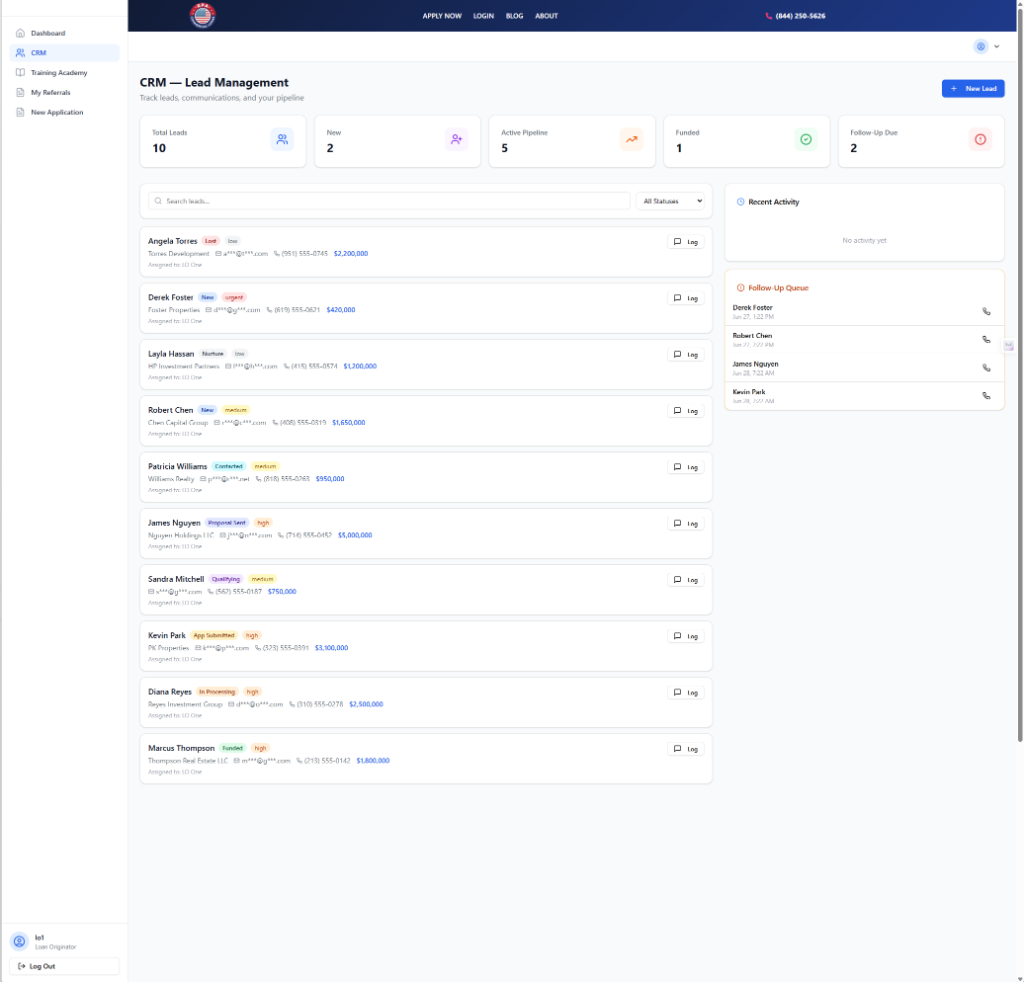
When you open the CRM, you see five summary cards at the top of the page:
| Card | Meaning |
|---|---|
| Total Leads | Every lead you have ever added, across all statuses. |
| New | Leads added recently that have not yet been contacted. |
| Active Pipeline | Leads currently in an active stage (Contacted, Qualifying, Proposal Sent, Application Submitted, In Processing). |
| Funded | Leads where the loan has closed. |
| Follow-Up Due | Leads with a follow-up date of today or earlier that you have not yet acted on. |
Below the stats is your Lead List, all leads sorted by most recently updated. Each lead row shows the name, company, masked email, phone, estimated loan amount (in blue), and status/priority badges. On the right side of the screen you will see two panels: Recent Activity (latest logged activities across all leads) and Follow-Up Queue (leads with imminent or overdue follow-ups).
You can filter the lead list by status using the All Statuses dropdown, or search by name, company, or email using the search bar.
12.2 Adding a New Lead
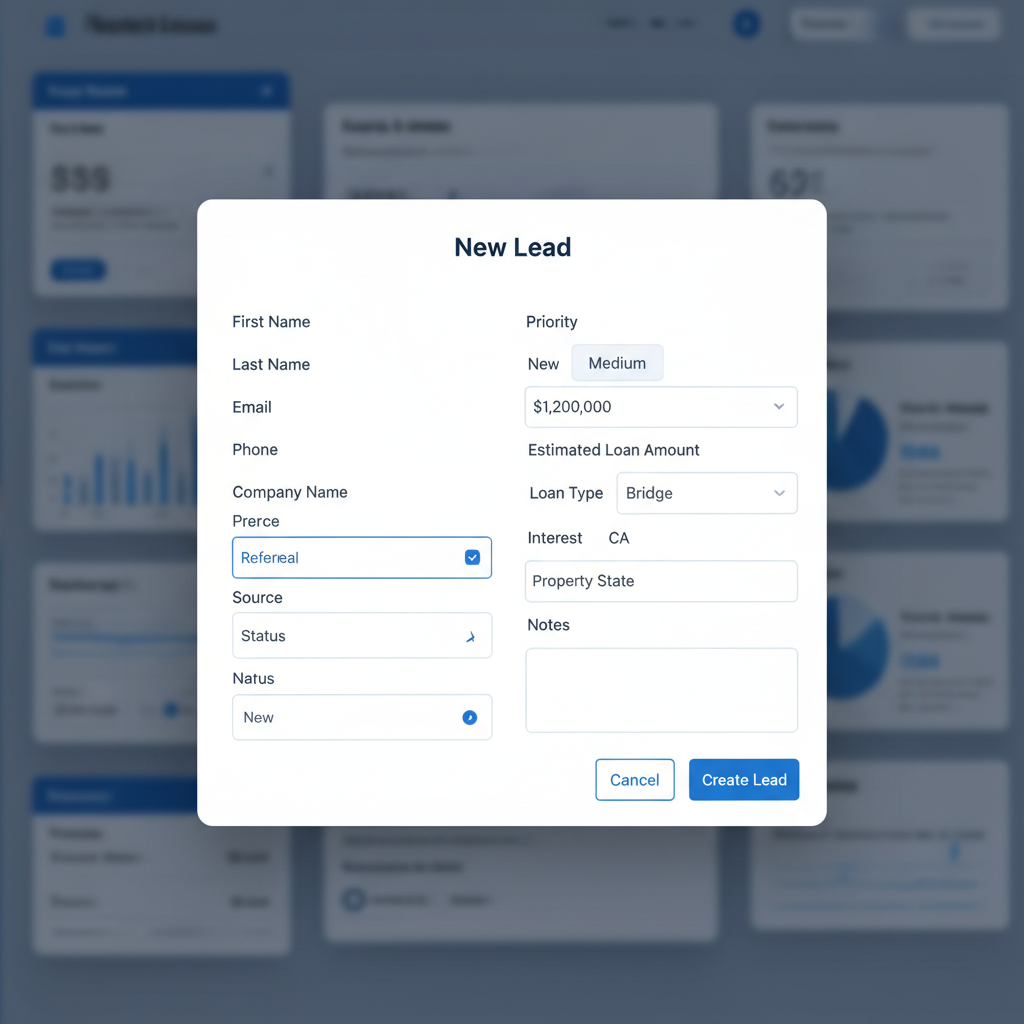
Click "+ New Lead."
Enter contact information.
Set the source.
Enter loan details.
Set priority and status.
Click "Create Lead."
12.3 Logging an Activity
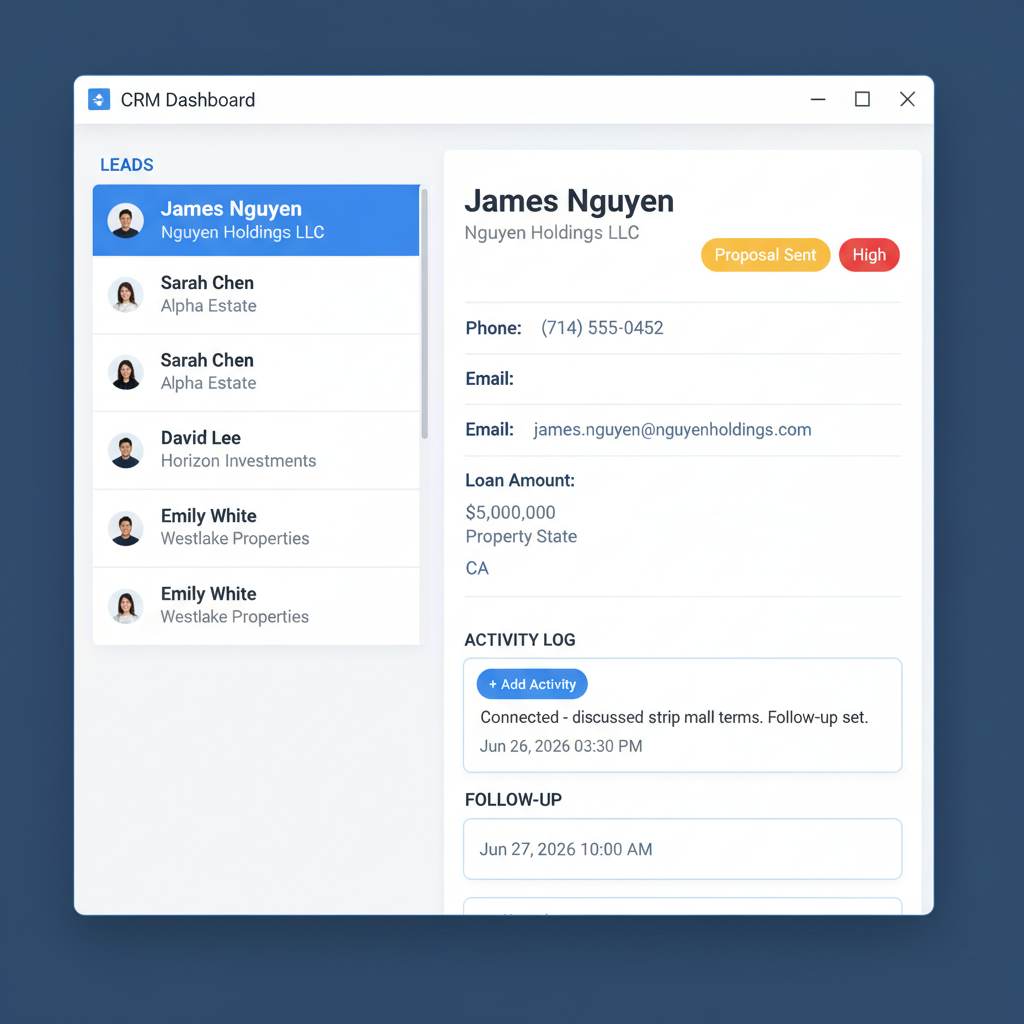
Every time you contact a lead, or a lead contacts you, log it. Click the Log button on any lead card in the list, or select a lead and use the Log Activity button in the detail panel that opens on the right side of the screen.
| Activity Type | When to Use |
|---|---|
| Phone Call | Any phone conversation with the lead. Record the duration and outcome (Connected, Voicemail, No Answer, etc.). |
| Outbound emails you send, or inbound emails you receive. Paste a summary or key points. | |
| Text / SMS | Text message exchanges. Note the key content and any response. |
| Meeting | In-person or video meetings. Log the agenda and agreed next steps. |
| Internal Note | Any internal observation, research finding, or note that is not a direct communication with the lead. |
When logging a call, the form also asks for an Outcome (e.g., Connected, Voicemail, Meeting Scheduled, Interested, Not Interested) and a Follow-Up Date. Always set a follow-up, this ensures the lead appears in your Follow-Up Queue at the right time.
12.4 Lead Statuses and What They Mean
| Status | What It Means / When to Use |
|---|---|
| New | Just added. No contact attempt has been made yet. Should be contacted within 24 to 48 hours. |
| Contacted | You have reached out but have not yet qualified the lead. They may not have responded yet. |
| Qualifying | Active discussions to determine whether the lead has a real loan need, viable property, and acceptable borrower profile. |
| Proposal Sent | You have presented loan options, shared a program overview, or submitted a pre-qualification summary. |
| Application Submitted | A formal loan application has been submitted through the RPA Quick Application portal. |
| In Processing | The application is actively moving through the RPA pipeline toward a funder. |
| Funded | The loan has closed and funded. Commission is now payable. |
| Lost | The lead did not convert, went with a competitor, no longer needs financing, etc. Mark as Lost rather than deleting. |
| Nurture | Not ready now but has future potential. Keep in touch periodically (30, 60, or 90 day follow-ups). |
12.5 The Follow-Up Queue
The Follow-Up Queue appears on the right side of the CRM Dashboard and lists every lead whose scheduled follow-up date has arrived or passed. Leads are sorted by urgency, the most overdue appear first. Click the phone icon next to any queued lead to open the log activity form immediately, pre-filled for a phone call. After logging the call and setting a new follow-up, the lead will be removed from the queue.
12.6 Updating a Lead
Click any lead in the list to open its detail panel on the right. From the detail panel you can update the status, priority, estimated loan amount, notes, and next follow-up date. Changes save immediately. You can also click Edit to open the full lead form and update any field.
12.7 Best Practices
- Log same-day. Log every call, email, and meeting on the day it happens. Memory fades quickly.
- Always set a follow-up. Every logged activity should result in a scheduled next step. "No next step" is rarely the right answer.
- Update statuses promptly. Move leads through the pipeline as soon as their status changes. Your pipeline stats are only useful if they reflect reality.
- Use the Notes field. Keep a running summary of the lead's situation, needs, and concerns so you can quickly re-orient before each contact.
- Don't delete leads. Mark lost leads as "Lost" rather than deleting them. Lost leads often re-engage months later when their situation changes.
- Nurture long-term prospects. Place leads who are not ready now into "Nurture" status and set a follow-up 30, 60, or 90 days out.
- Log voicemails as calls. Even if no one answered, log a call with outcome "Voicemail" and set a follow-up. This documents that you attempted contact.
13. Connecting Your Calendly Scheduler
RPA's Borrower Consultations page lets you connect your own Calendly account so borrowers can book consultation calls with you directly. When a borrower schedules a meeting through your Calendly link, the platform automatically syncs that meeting into the CRM, creating a meeting activity record on the matching lead, and even creating a new lead automatically if the borrower's email isn't already in your pipeline. This eliminates manual data entry and ensures no consultation slips through the cracks.
Borrower Consultations Page, Sync Summary, Booking Links, and Synced Meetings
13.1 Opening the Consultations Page
From your left-hand navigation sidebar, click Consultations (the calendar-check icon). This opens the Borrower Consultations page, which serves as your hub for scheduling and syncing borrower meetings.
13.2 Connecting Your Calendly Account (First Time)
The first time you open the Consultations page, you'll see a prompt to connect your Calendly account. You only need to do this once.
Click "Connect Calendly."
Log in to Calendly.
Review and approve permissions.
Return to the Consultations page.
13.3 Your Booking Links
Once connected, the Your Booking Links section lists every active event type in your Calendly account (for example, "15-Minute Intro Call," "30-Minute Loan Consultation," "Borrower Discovery Call"). Each link shows the event name, duration, and a Book button that opens the Calendly scheduling page in a new tab.
Share these links with borrowers via email, text, or your email signature. When a borrower books a time, the meeting is added to your Calendly calendar and will be synced to the CRM on your next sync (see 13.4).
13.4 Syncing Meetings to the CRM
Syncing pulls your scheduled Calendly events into the CRM. Click the Sync Now button at the top right of the Consultations page. The sync runs and displays three summary cards:
| Card | What It Shows |
|---|---|
| Total Events | The number of scheduled Calendly events found in the sync window (30 days back, 30 days forward). |
| Synced to CRM | The number of new meeting activity records created in the CRM during this sync. Already-synced meetings are not re-counted. |
| New Leads | The number of new CRM leads created because the borrower’s email was not already in your pipeline. |
Below the summary cards, the Recently Synced Meetings list shows each meeting that was synced this round, with the event name, the matched lead's name, and the scheduled date and time.
13.5 What Gets Logged in the CRM
For each synced meeting, a CRM activity record is created with:
- Activity type: Meeting
- Direction: Inbound (the borrower booked the meeting)
- Subject: The Calendly event name (with a hidden tracking ID to prevent duplicates)
- Body: The event name, scheduled date/time, location (video link or address), and the borrower's answers to any Calendly intake questions
- Duration: Calculated from the event start and end times
- Outcome: Meeting Scheduled
- Activity date: The scheduled meeting date and time
Open the CRM Dashboard and click the lead to see the meeting in the activity history. From there you can add follow-up notes, set a next follow-up date, or update the lead status (e.g., move from New to Qualifying after the consultation takes place).
13.6 Disconnecting Your Calendly Account
If you need to switch Calendly accounts or stop syncing, click the Disconnect button at the top right of the Consultations page. This revokes RPA's access to your Calendly account. Previously synced meetings remain in the CRM, disconnecting only stops future syncs. To resume, click Connect Calendly and re-authorize.
13.7 Troubleshooting
| Issue | What to Do |
|---|---|
| “Connect Calendly” button does nothing | Ensure pop-ups are allowed in your browser. The authorization page opens in a new tab. If it’s blocked, allow pop-ups for rpacommercialloans.com and try again. |
| No booking links appear after connecting | Make sure you have at least one active event type in your Calendly account. Inactive or draft event types are not displayed. |
| Sync shows 0 events | Confirm you have scheduled events within the sync window (past 30 days and next 30 days). Canceled events are excluded. |
| A meeting didn’t sync to the right lead | The sync matches by email. If the borrower booked with a different email than the one on the CRM lead, a new lead is created. Merge duplicate leads manually by updating the email on the correct lead and deleting the duplicate. |
| “Calendly not connected” error on sync | Your Calendly authorization may have expired. Click Disconnect, then Connect Calendly again to re-authorize. |
14. Glossary
ARV (After Repair Value)
The estimated value of a property after all planned renovations are completed. Used in Fix & Flip and construction loan underwriting.
Bridge Loan
A short-term loan (6 to 36 months) used to bridge the gap between an immediate need and permanent financing.
Calendly
An online scheduling tool that lets borrowers book consultation calls with you at times you choose. RPA syncs Calendly meetings into the CRM automatically.
C-PACE
Commercial Property Assessed Clean Energy financing, a long-term, fixed-rate assessment for energy efficiency and clean energy improvements.
Commission
A fee paid to the originating partner upon successful loan funding, as a percentage of the funded loan amount.
CRM
Customer Relationship Manager, the built-in tool for tracking leads, logging activities, and managing follow-ups.
Consultations
The RPA page where you connect your Calendly account, view your booking links, and sync scheduled meetings to the CRM.
DSCR (Debt Service Coverage Ratio)
Net Operating Income divided by annual debt service. A ratio above 1.0 means the property generates more income than needed to cover loan payments.
Entity
A legal business structure (LLC, corporation, partnership, trust) that serves as the primary borrower on a commercial loan.
EIN (Employer Identification Number)
The federal tax ID number assigned to a business entity by the IRS. Format: XX-XXXXXXX.
Funder / Lender
The capital provider who ultimately funds the approved loan.
Link Masking
Hiding a long URL behind a clickable phrase (e.g., "Apply Now") using Ctrl+K in an email or document.
Loan Originator
A professional who identifies borrowers, collects application information, and submits loan applications to RPA on the borrower's behalf.
LTV (Loan-to-Value)
Loan amount divided by property value. Lower LTV means less lender risk.
Mid-Score
The middle of a borrower's three bureau credit scores used as the qualifying score.
NOI (Net Operating Income)
Gross rental income minus operating expenses, before debt service.
Quick Application
RPA's streamlined 5-step loan submission form, designed to be completed in under 10 minutes.
Referral Code
A unique identifier (the username portion of your email) assigned to each partner that automatically attributes applications to them.
Referral Link
A full URL including your referral code, e.g., rpacommercialloans.com/QuickApplication?ref=yourcode.
Sync (Calendly)
The process of pulling scheduled Calendly events into the RPA CRM as meeting activity records. Sync is manual, click Sync Now on the Consultations page.
SBA
Small Business Administration, a U.S. government agency that guarantees certain small business loans to reduce lender risk.
Term Sheet
A non-binding proposal from a lender outlining key proposed loan terms (rate, amount, term, fees).
T-12
Trailing 12 months of income and expense data for an income-producing property.
W-9
IRS Form W-9, Request for Taxpayer Identification Number and Certification. Required for commission payments.
Start Originating with RPA Commercial Loans
Complete your registration to access the Loan Originator Portal, the CRM, and the Parker School of Business training academy.
RPA Commercial Loans | Loan Originator & Broker Partner Manual | July 2026
Questions? Contact us or email support@rpacommercialloans.com.
Have a question?
I'm Robert, your RPA assistant. Ask me about loan programs, applications, or partner onboarding.